HR onboarding: make the first week actionable
Equipment, access and introductions have different owners. A shared space makes the handoffs visible without mixing an employee’s private records into a general team board.
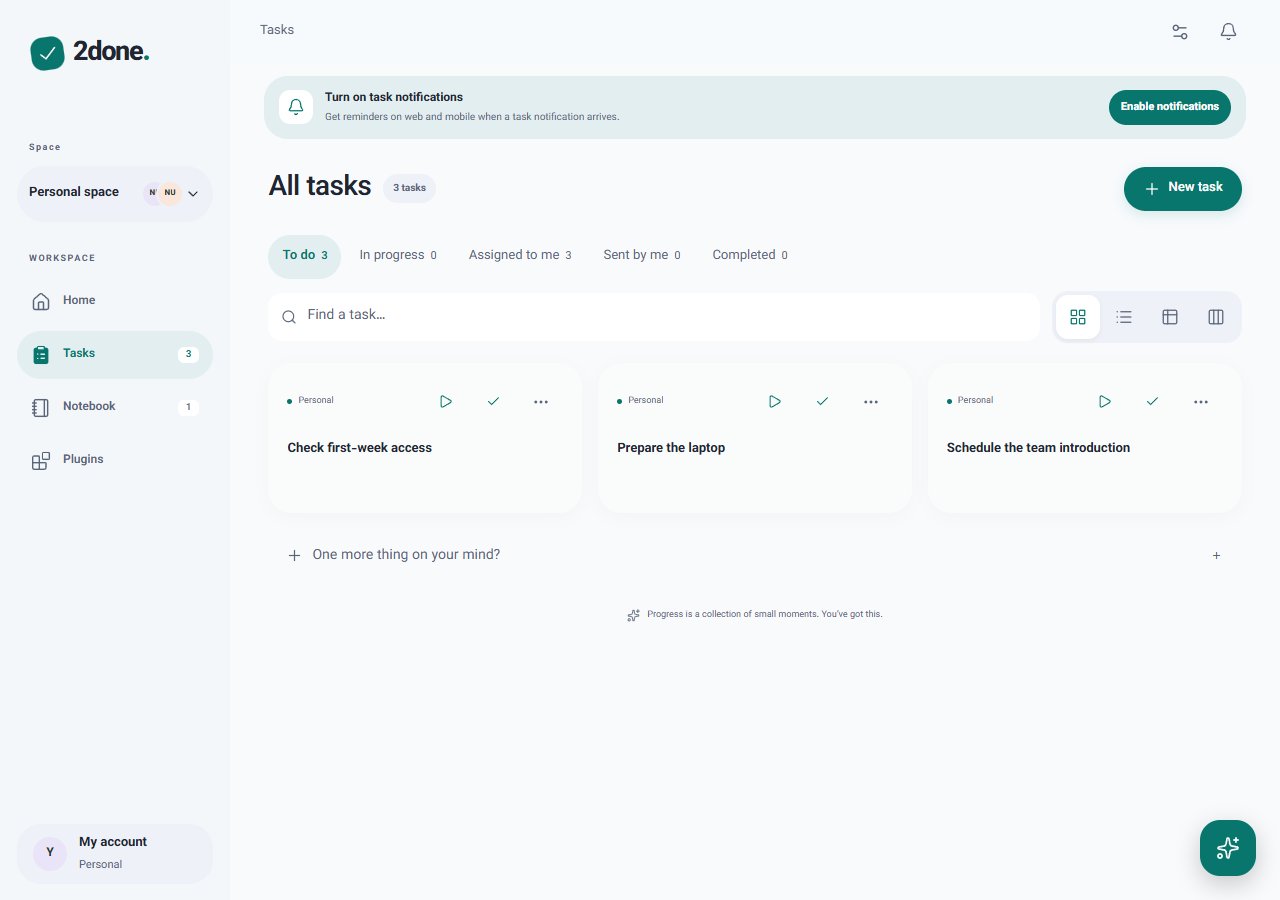
Actual 2Done interface with fictional tutorial data, not real customer records.
1. Choose the space and the outcome
Equipment, access and introductions have different owners. A shared space makes the handoffs visible without mixing an employee’s private records into a general team board.
Open the app and use the space selector to choose your personal space or an authorized shared space. You can name a shared space “Onboarding”. The manual workflow works in a free personal space; AI and shared work require an eligible plan and allowance. Before inviting a member, check whether they should see the information in this case.
2. Keep the context in Notebook
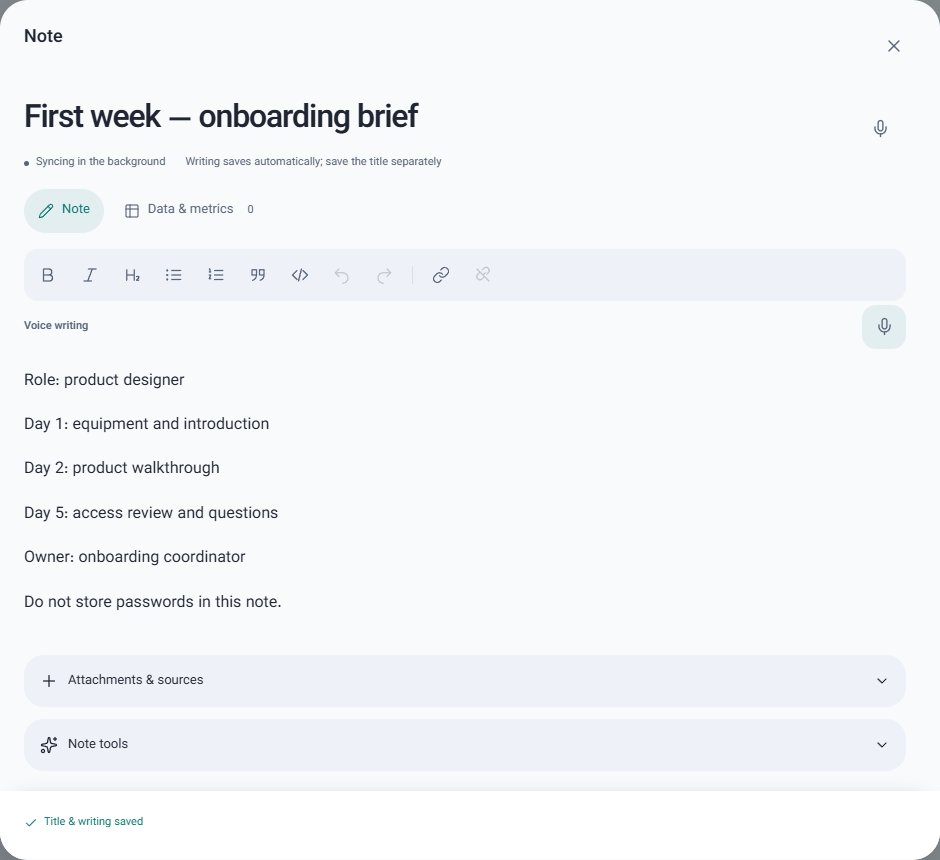
Open Notebook, choose New note and enter “First week — onboarding brief”. Replace the example below with your own information. Choose the appropriate folder, or create one from the folder row. After saving, reopen the note to confirm the content was stored.
Assign equipment to the relevant teammate, the introduction to the manager, and the review to HR. Use only the members who actually have access to the space. Keep salary, identity and health records out of this shared example.
Role: product designer
Day 1: equipment and introduction
Day 2: product walkthrough
Day 5: access review and questions
Owner: onboarding coordinator
Do not store passwords in this note.
3. Turn the next steps into tasks
In Tasks, choose New task and name the first action “Prepare the laptop”. Add a short description and the case name. Set a due date for a real commitment. Enable a reminder separately if you need a notification: a due time alone is not a reminder. In a shared space, choose an actual member as assignee before saving.
The other two actions in this example are “Schedule the team introduction” and “Check first-week access”. These are separate outcomes; completing one does not complete the others.
4. Ask Doneh for help when useful
Return to Home in the same space and keep the approval shield enabled. Send the relevant note text with the prompt below rather than relying on a note title alone. Review proposed titles, dates, assignees and any deletions, then approve only the changes you intend.
This step is optional and requires AI access. If using voice input, check the transcription. Do not assume Gmail, Drive or Calendar is connected; this workflow also works without those integrations.
Turn this first-week brief into tasks with suggested owners and dates. Ask me about missing dates instead of assuming them.
5. Review the result and close the loop
Find “Prepare the laptop” using task search. Use List or Kanban when reviewing several cases. Start a task when work begins and mark it done only after the outcome is reached. Add new facts or decisions back to “First week — onboarding brief” so the next reader understands what changed.
Final check: one findable note, three non-duplicate tasks, confirmed owners and dates for commitments, and a clear next step. If saving fails, check the list before creating a second copy. Replace all fictional example data before using the workflow for real work.
Sources & further reading
Keep reading
 Step-by-step use cases
Property sales: from a viewing to a clear follow-up
Viewings, buyer preferences and owner callbacks are scattered across messages. Keep the property facts in a note and give every promised follow-up its own task.
Read article ↗ Step-by-step use cases
Car sales: keep each inspection and buyer follow-up together
A buyer asks about service history while another books a test drive. Separate the vehicle facts from the actions so neither the documents nor the next call gets lost.
Read article ↗