 Planning
How to plan your day with a task list you can finish
A practical 2Done workflow for capturing tasks, choosing a realistic today list and reviewing unfinished work without losing it.
Read article ↗Practical guides, product walkthroughs and source-backed answers.
PlanningA practical 2Done workflow for capturing tasks, choosing a realistic today list and reviewing unfinished work without losing it.
Read article ↗ How-to guides
Understand deadlines, one-time alerts and recurring reminders in 2Done, with a checklist for notifications that do not arrive.
Read article ↗ Collaboration
Organize shared work in 2Done with clear next actions, useful context and reviewed AI proposals. Understand what is free and what paid AI plans add.
Read article ↗ Planning
Quick capture records an action before you forget its context. A title identifies the outcome; the description holds supporting details. You choose the space and person responsible before submitting.
Read article ↗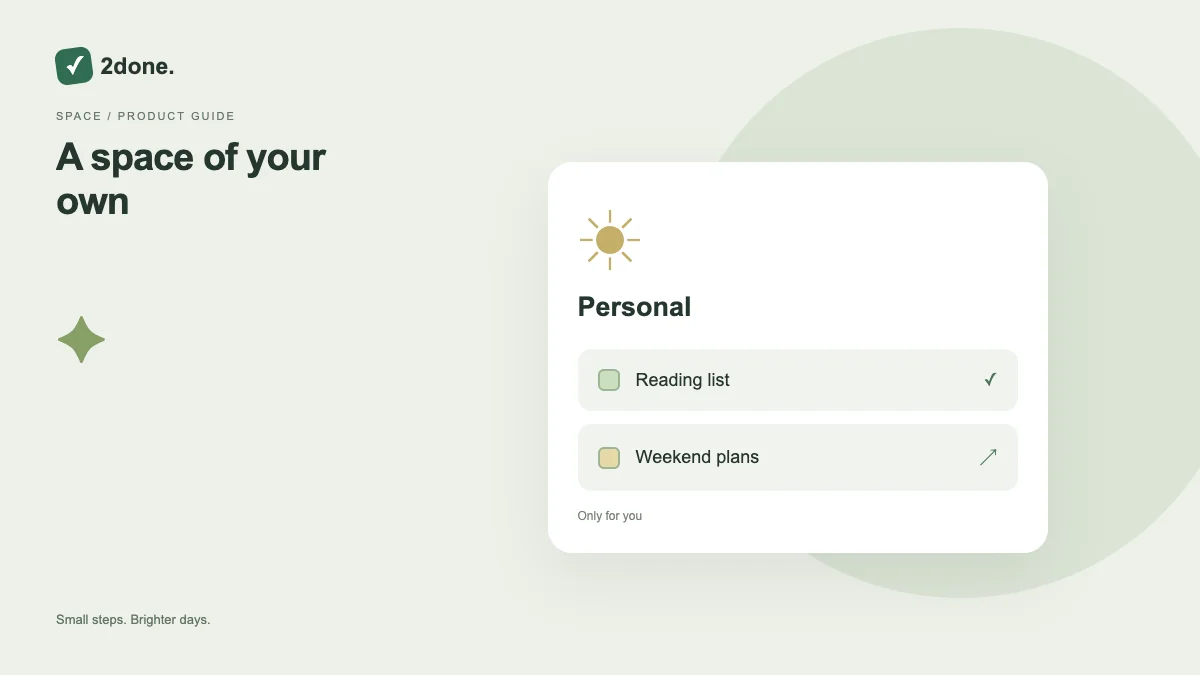 Planning
Your personal space separates individual commitments from the shared spaces you participate in. Selecting a space changes the context in which you create and review work.
Read article ↗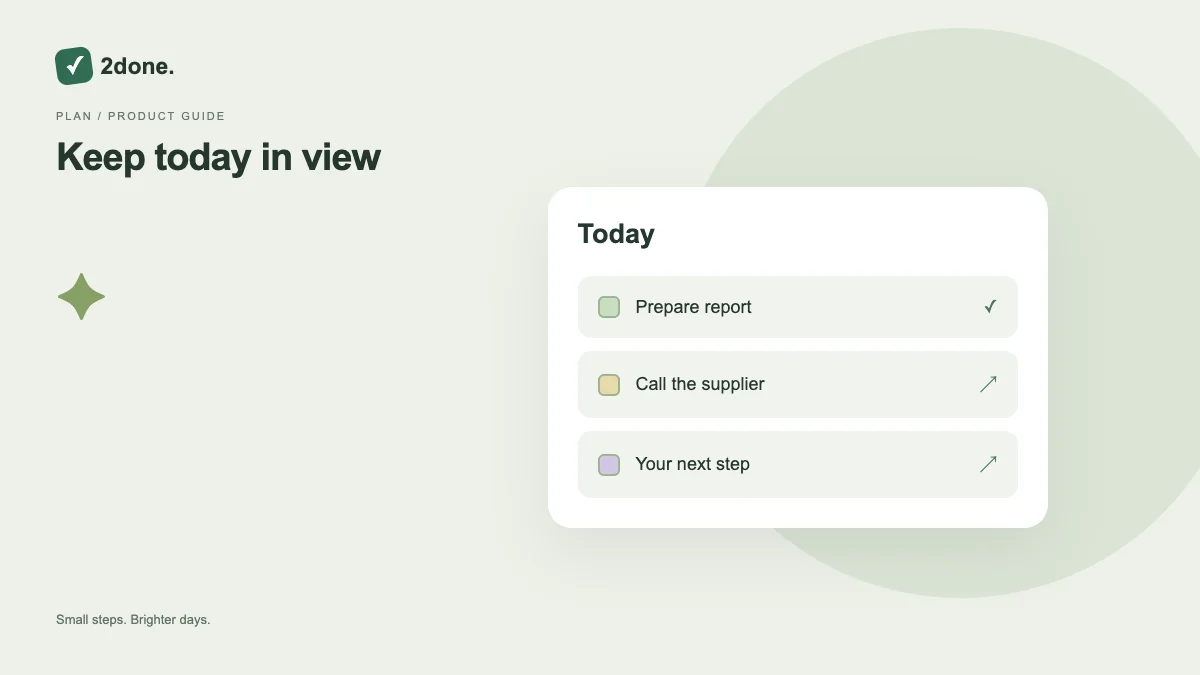 Planning
Today is a focused view of the selected workspace, with filters for your active work, work in progress, delegated items and completed tasks. It helps you distinguish immediate follow-up from the wider task list.
Read article ↗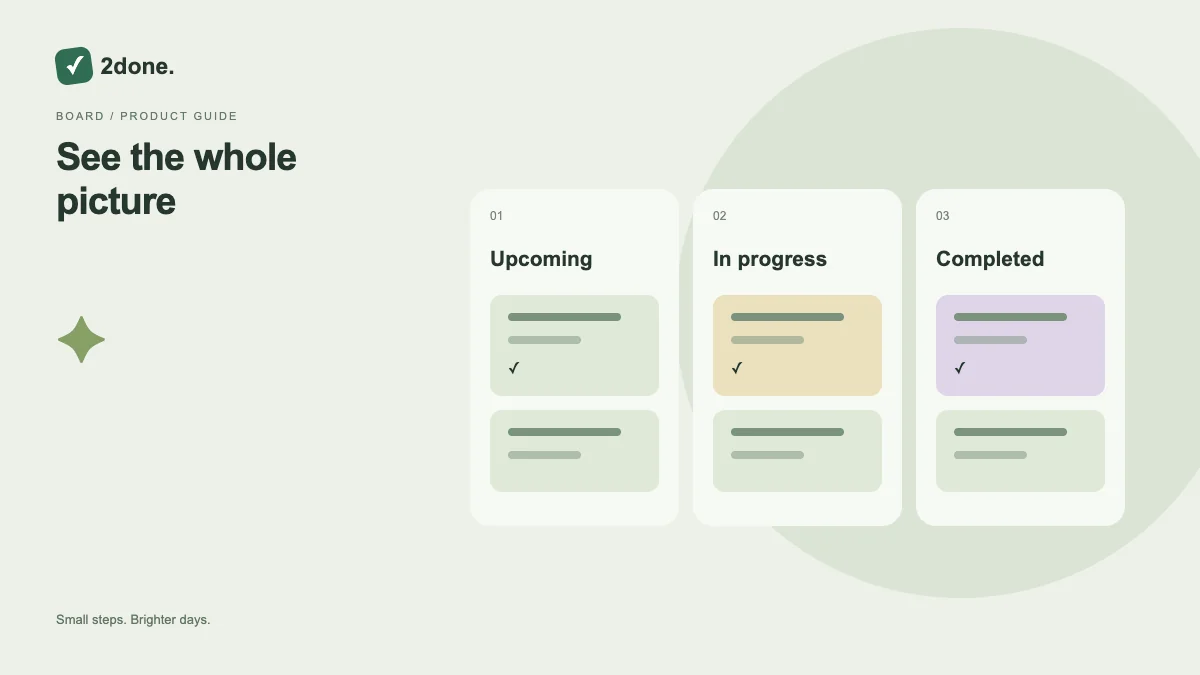 Planning
The complete task view keeps work beyond the immediate Today context visible. It is the place to find future commitments, review completed items and check responsibility without copying tasks between lists.
Read article ↗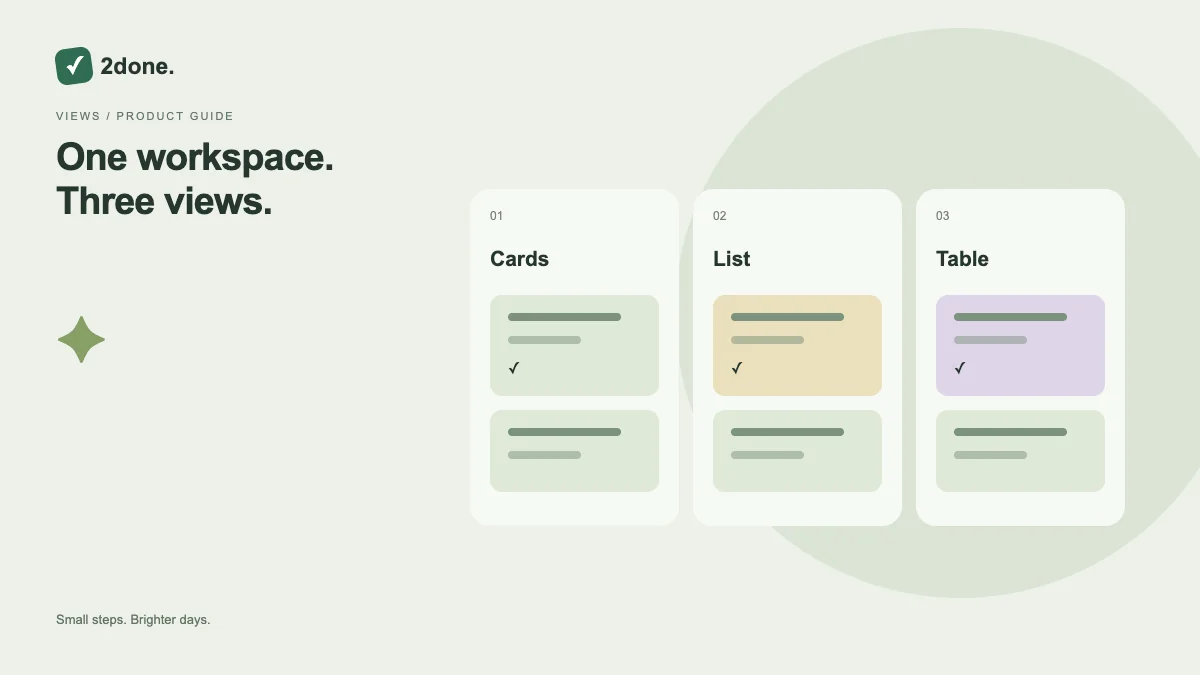 How-to guides
2Done offers presentation modes for the same task records. Cards emphasize individual items, lists favor compact scanning, and tables support comparing several fields across tasks.
Read article ↗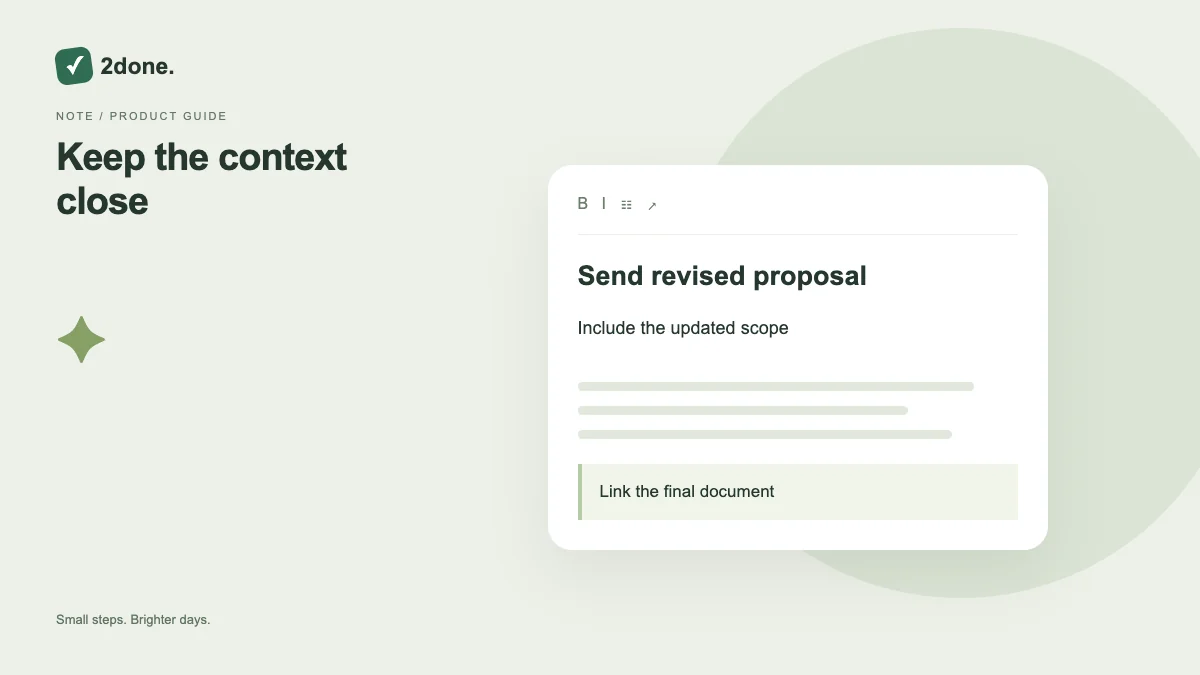 How-to guides
A task description keeps the instructions and context attached to a clear action title. It is useful for acceptance criteria, document locations and facts the responsible person needs to finish the task.
Read article ↗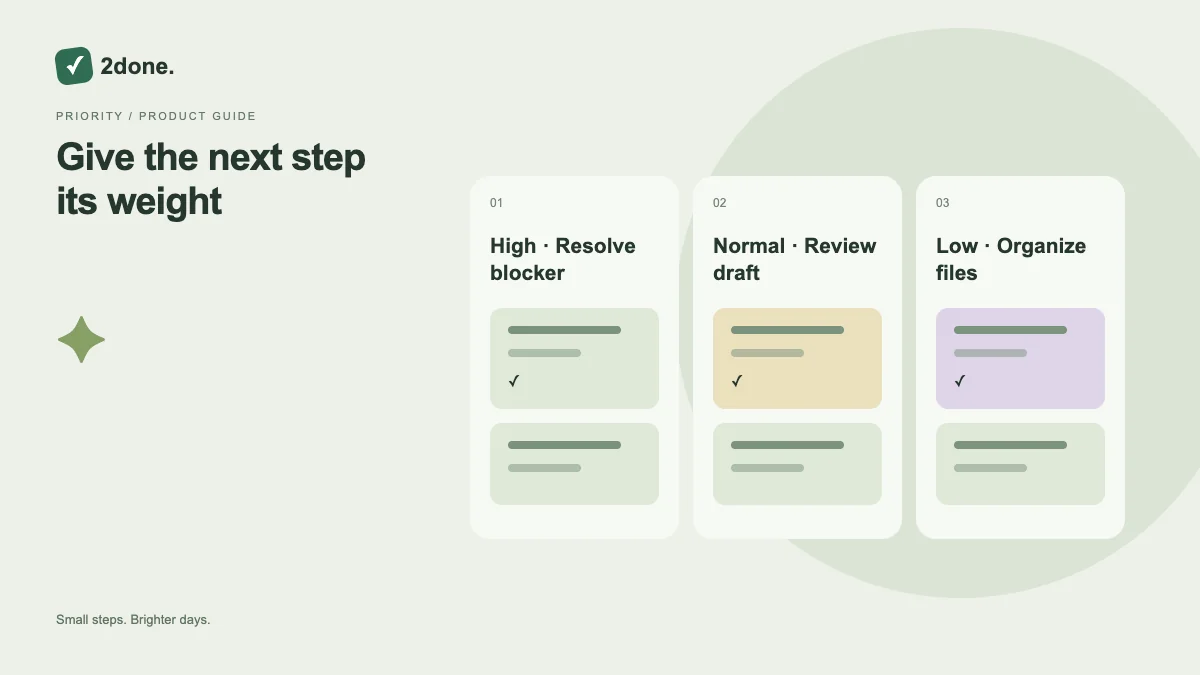 Planning
Priority records how important a task is within the current work. It helps you discuss attention without using an artificial due date to make every item look urgent.
Read article ↗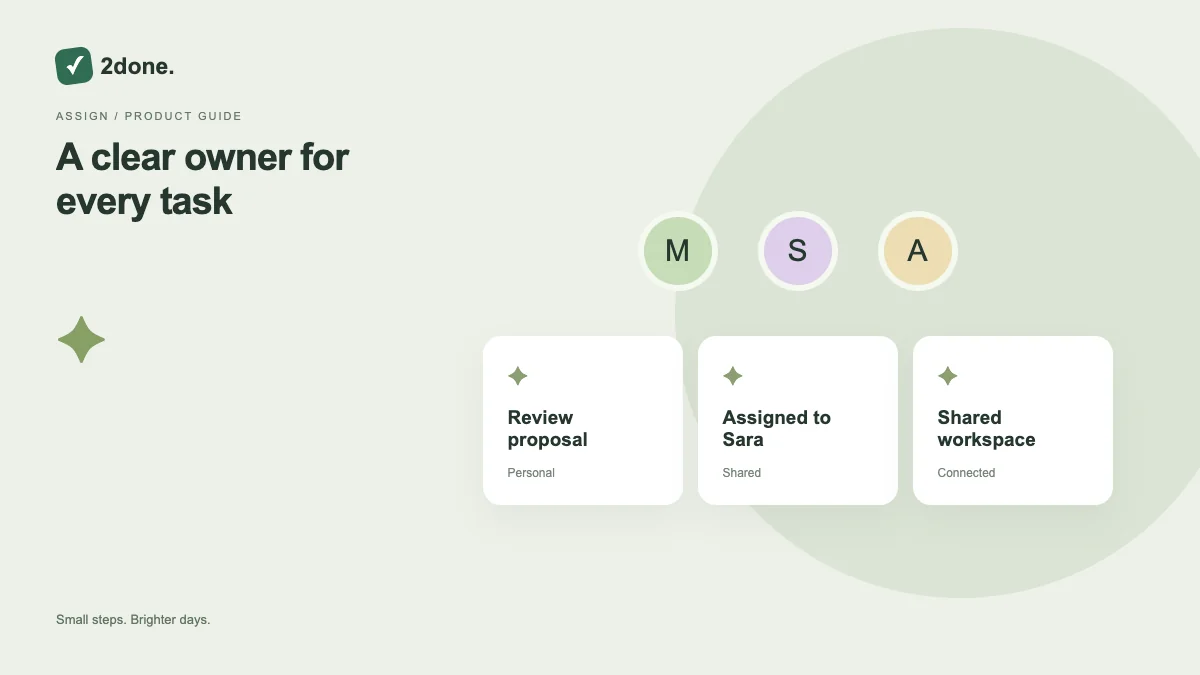 Collaboration
Task assignment identifies the person responsible for moving the action forward. In shared work, this distinguishes your own tasks from items you delegated to another member.
Read article ↗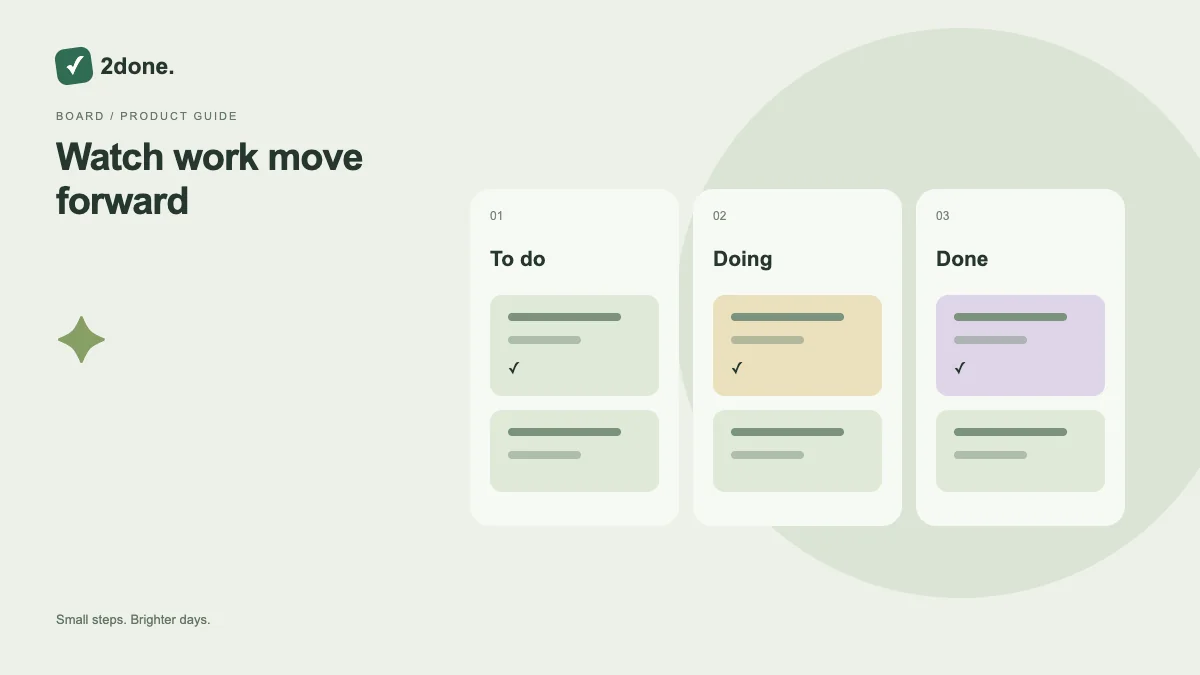 Planning
Status describes whether work is still open, being worked on or finished. Changing it updates the shared record, so a completed item can move out of an active-work filter without being deleted.
Read article ↗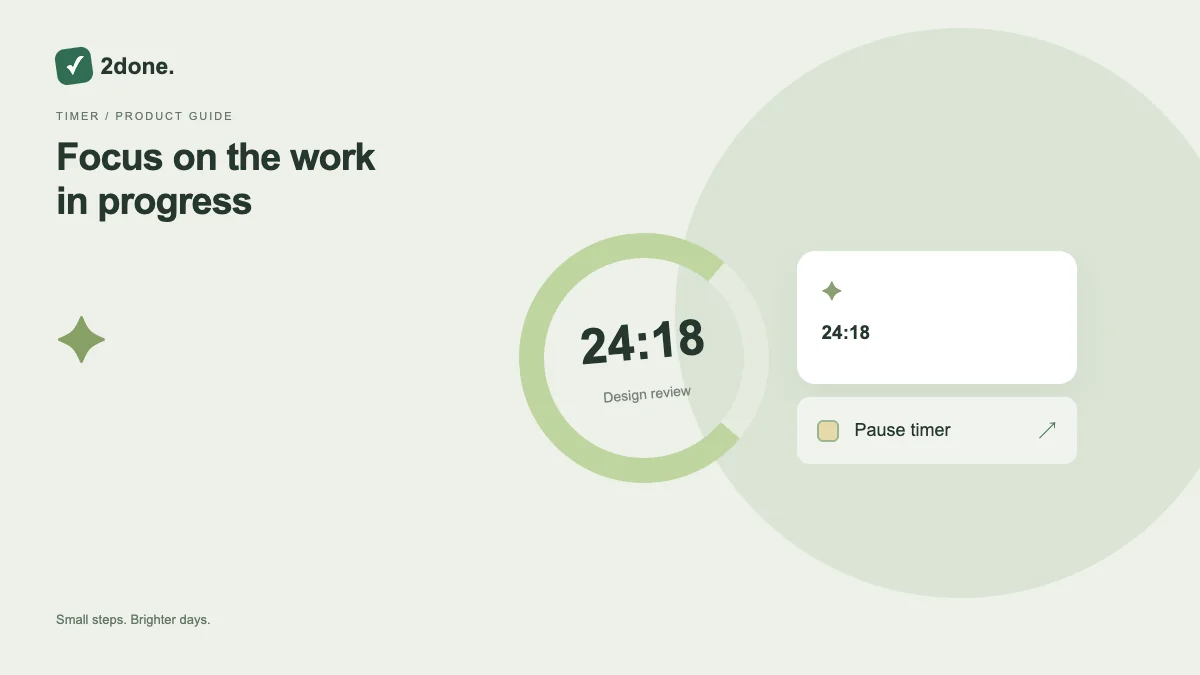 How-to guides
The task clock displays elapsed time associated with the current work-start timestamp. It gives context while a task is in progress and is separate from its due time or reminder schedule.
Read article ↗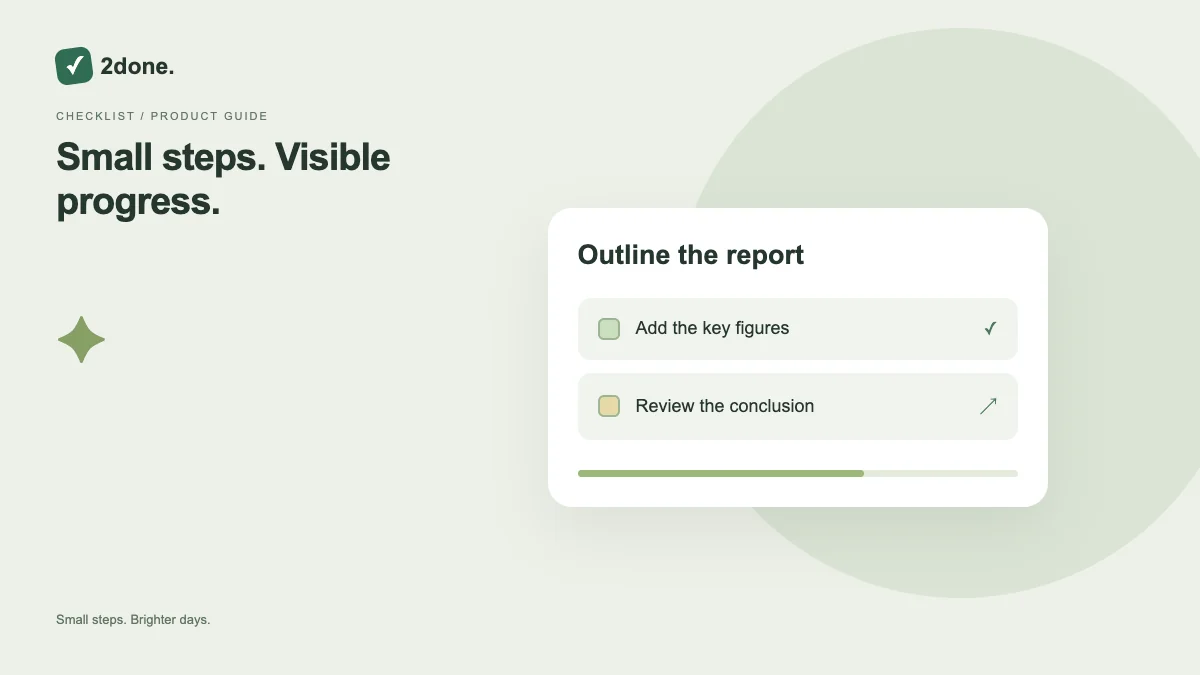 Planning
A checklist divides a task into smaller steps with individual completion states. Its progress indicator summarizes checked steps, while the parent task remains the action you are trying to finish.
Read article ↗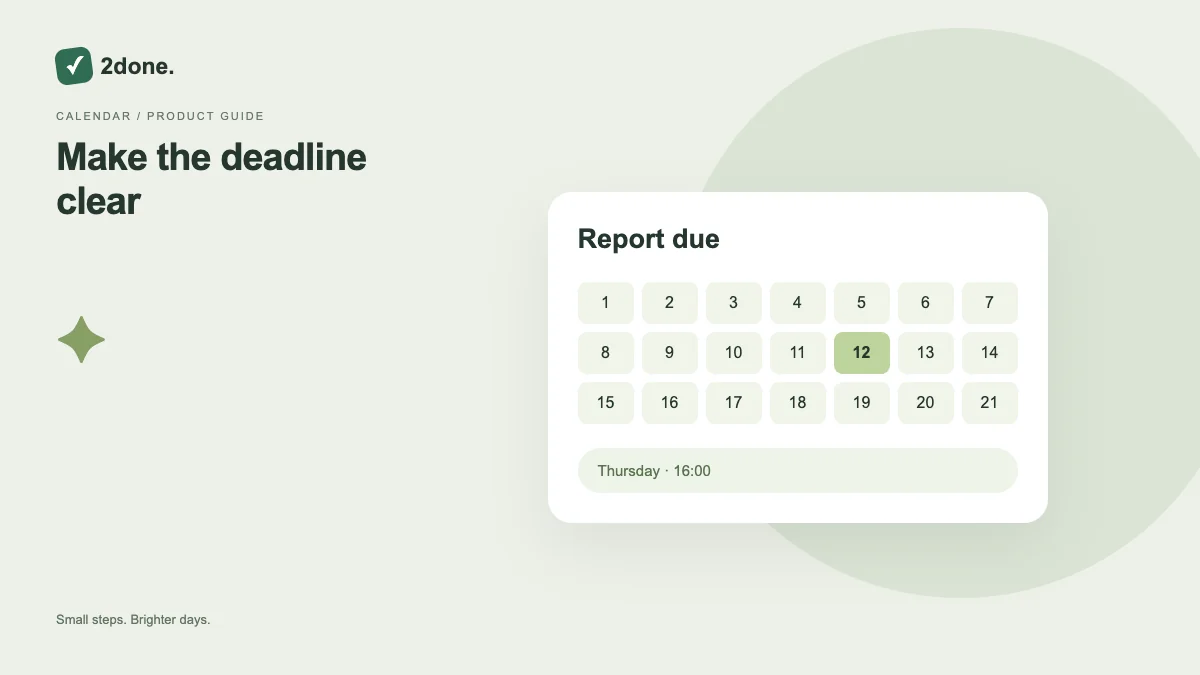 Planning
A due date records when a task should be completed. The date-time picker lets you choose the date and time explicitly instead of relying on an ambiguous phrase in the task title.
Read article ↗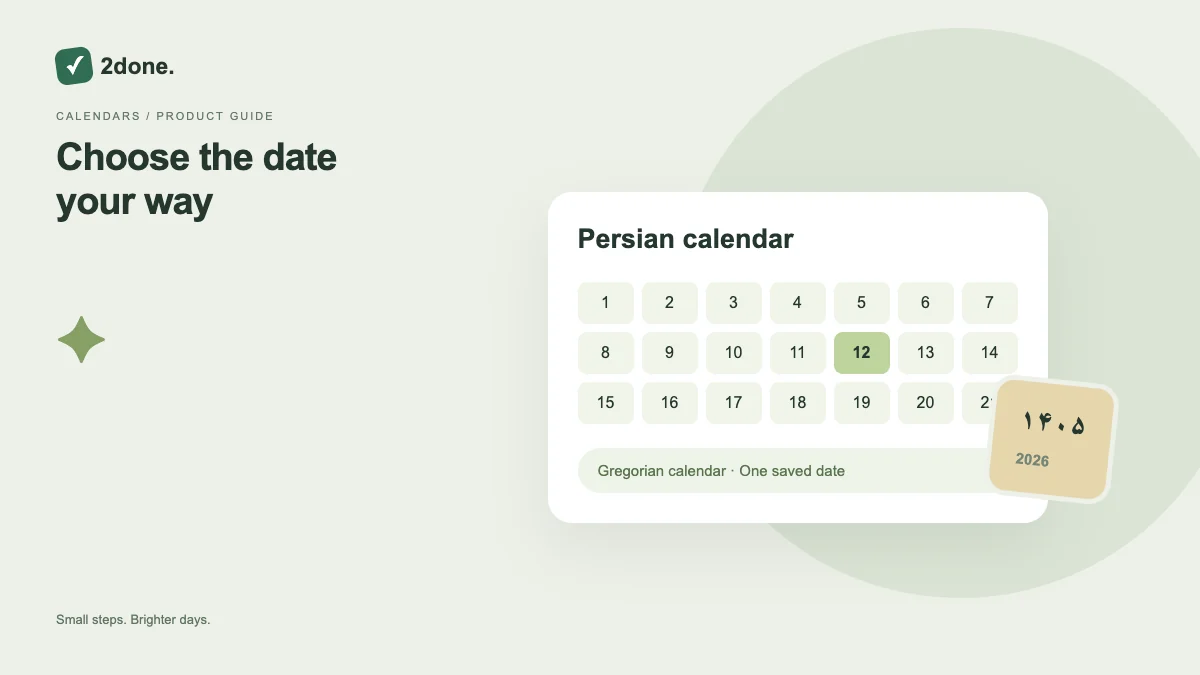 How-to guides
The date picker provides Persian and Gregorian calendar presentation for choosing task dates. Calendar presentation helps you read the intended day without changing the meaning of the scheduled instant.
Read article ↗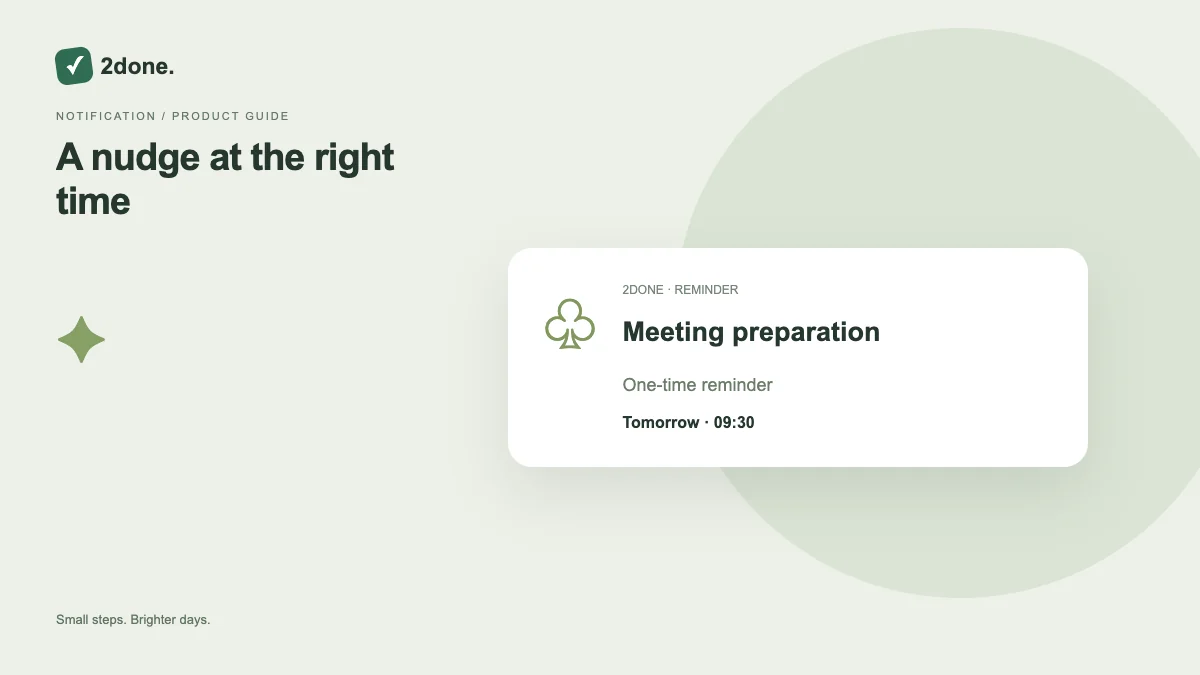 Planning
A one-time reminder schedules a notification for a specific task follow-up. It is configured independently from the task’s due date, so you can receive a prompt before the final deadline.
Read article ↗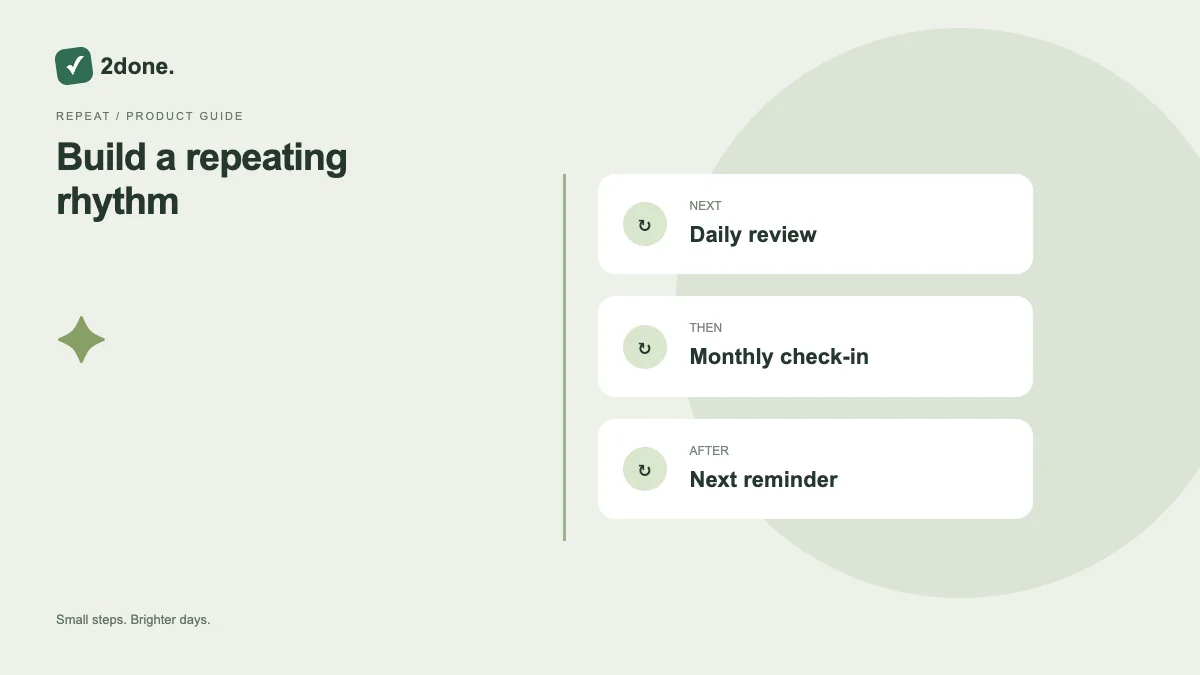 Planning
Repeating reminders support recurring follow-up without manually creating a new alert each time. The app offers daily and monthly modes alongside one-time reminders.
Read article ↗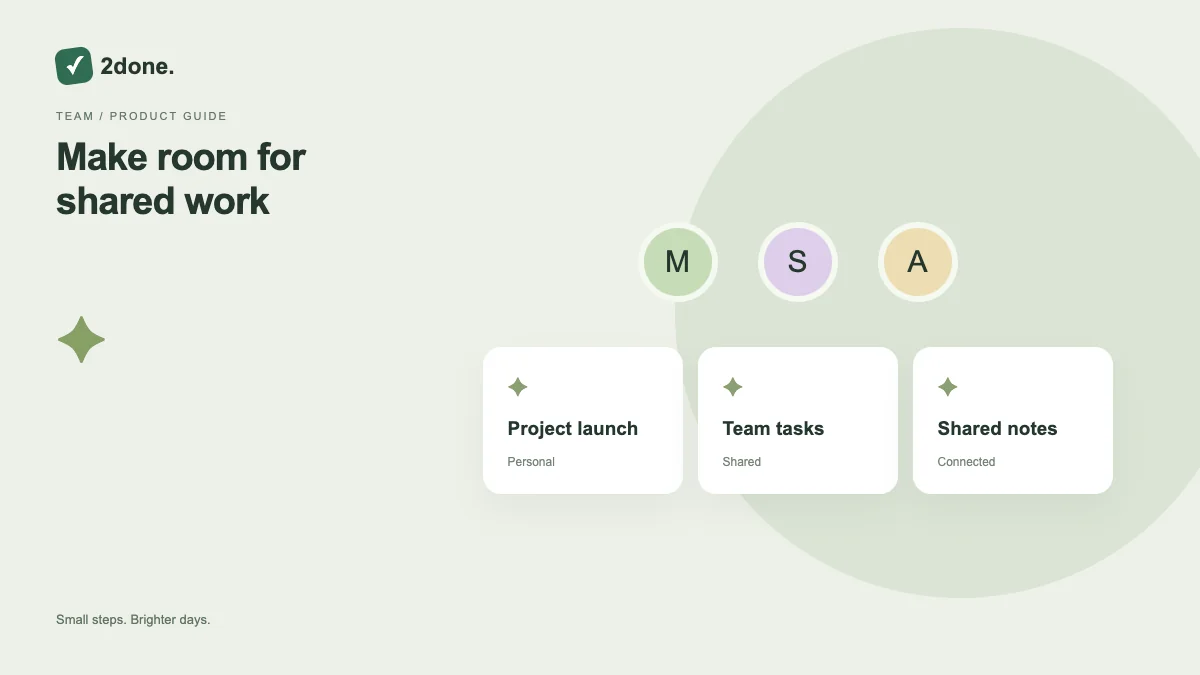 Collaboration
A shared space groups tasks and notes for people working together. It separates team context from personal work, while membership and roles determine what each person can do.
Read article ↗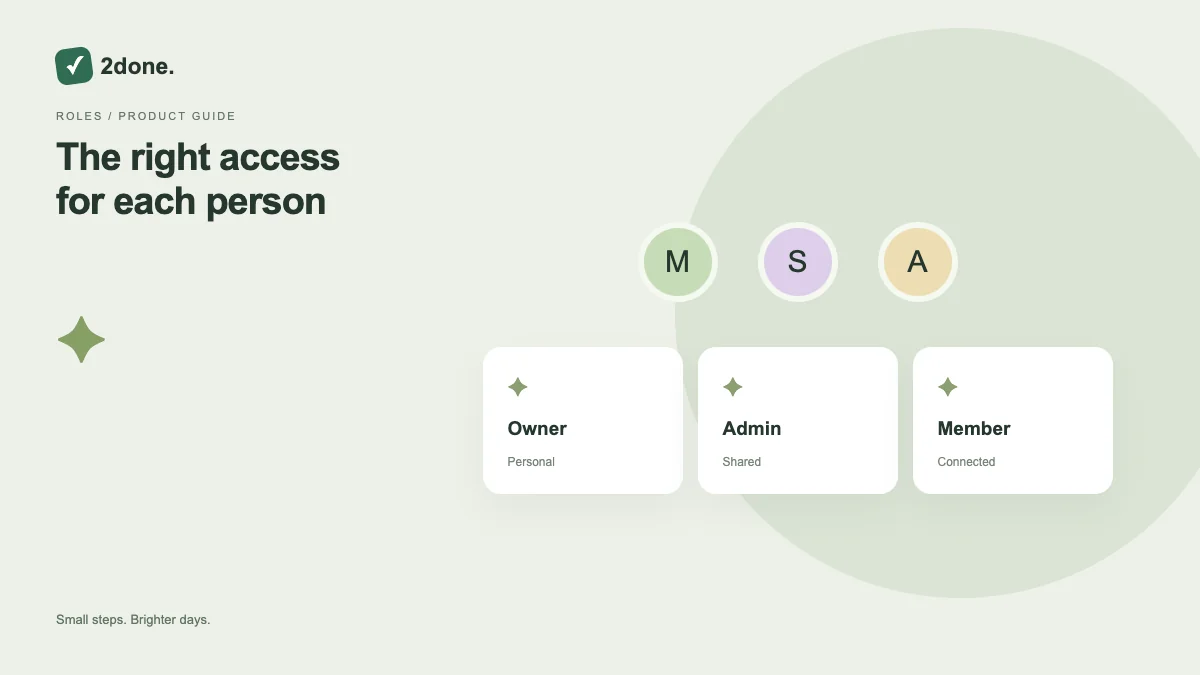 Collaboration
Space membership controls who participates in shared work. Roles distinguish access levels, so adding a person and granting them management rights should be deliberate decisions.
Read article ↗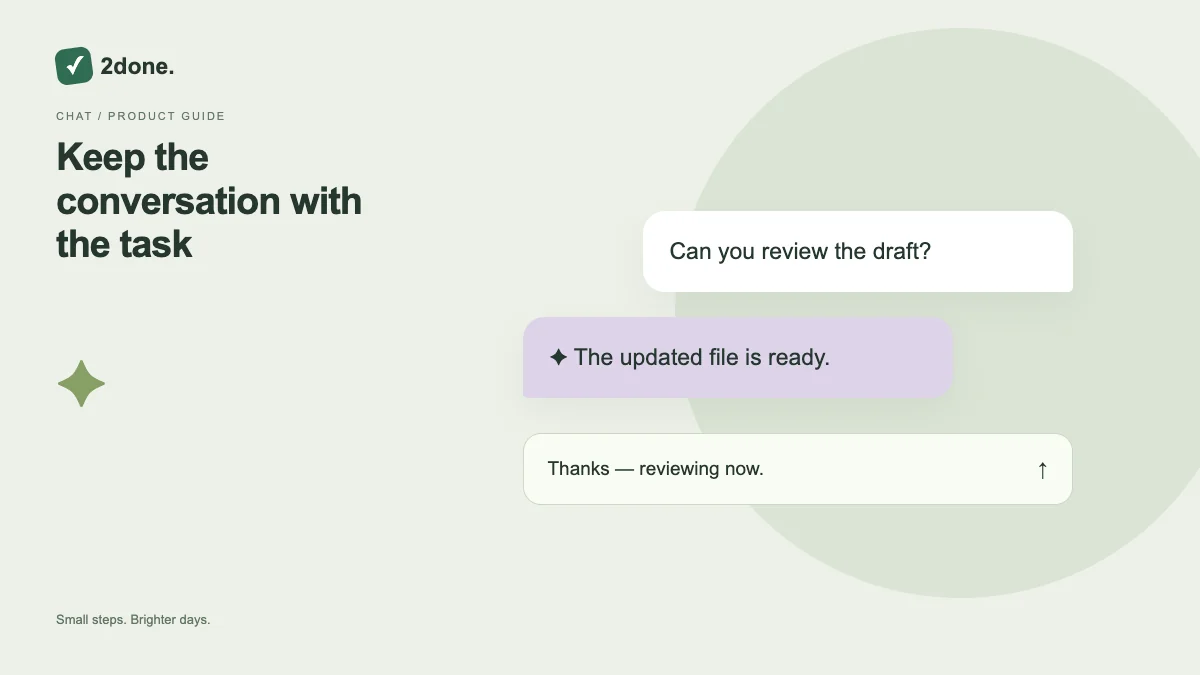 Collaboration
Comments attach discussion to the task it concerns. They are useful for clarifying the brief, reporting a blocker or recording a handoff without replacing the current task description.
Read article ↗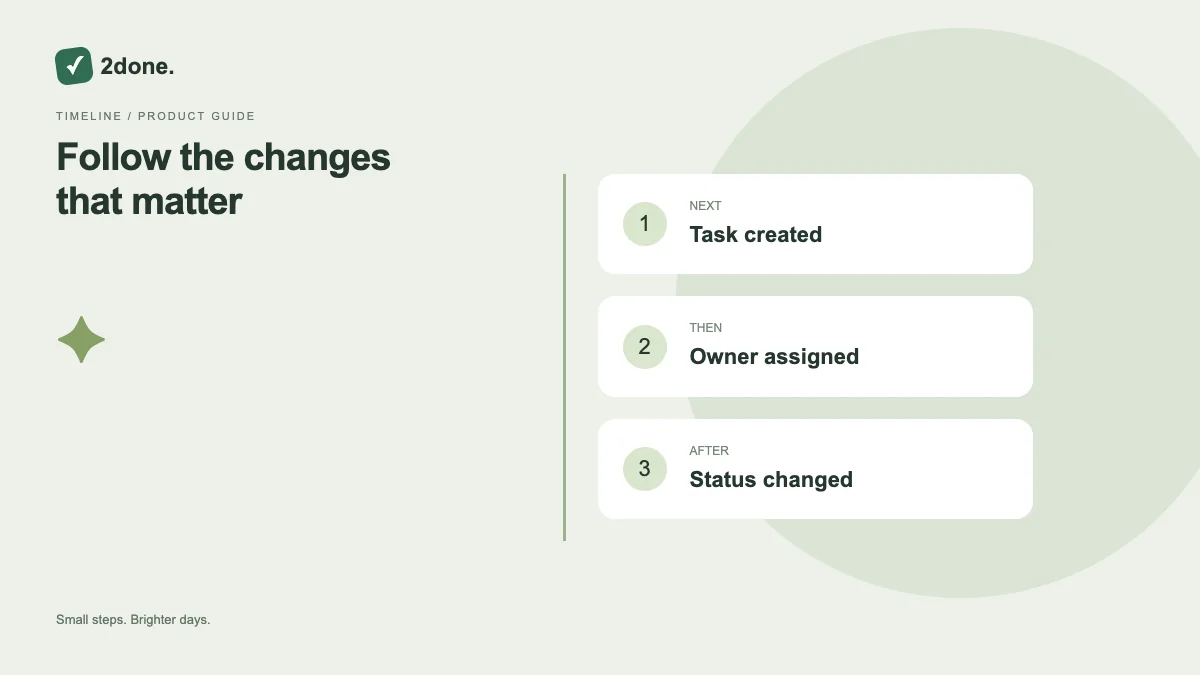 Collaboration
The activity view presents recorded task changes so you can understand how the current state was reached. It is especially useful when several people update the same shared task.
Read article ↗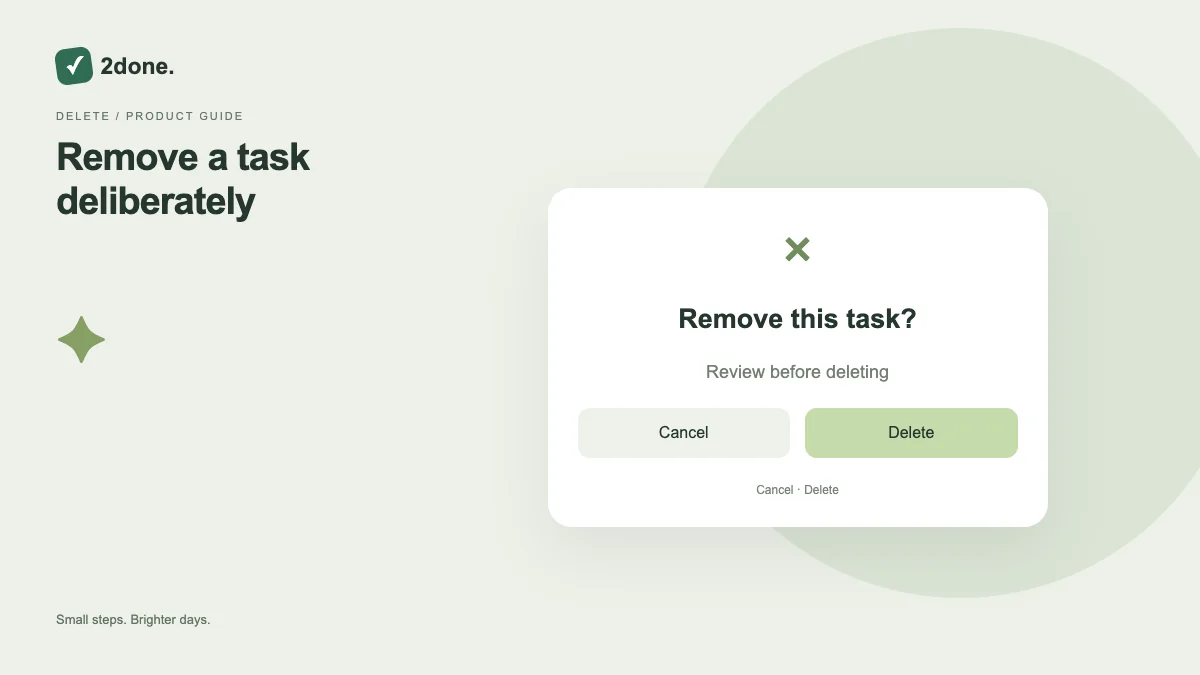 How-to guides
Deletion removes a task instead of merely marking its outcome complete. Use it for an item that should not remain as an ordinary task record, rather than for every piece of finished work.
Read article ↗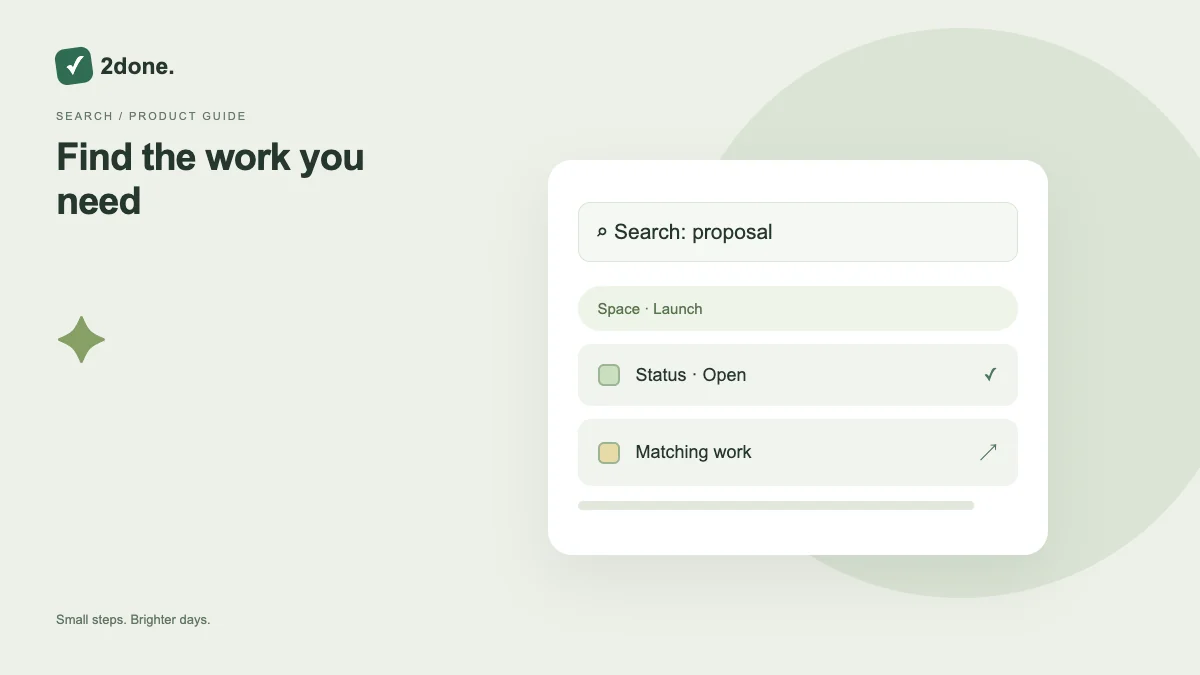 How-to guides
Text search and status or responsibility filters narrow the task collection you are viewing. They help locate work while keeping the workspace context explicit.
Read article ↗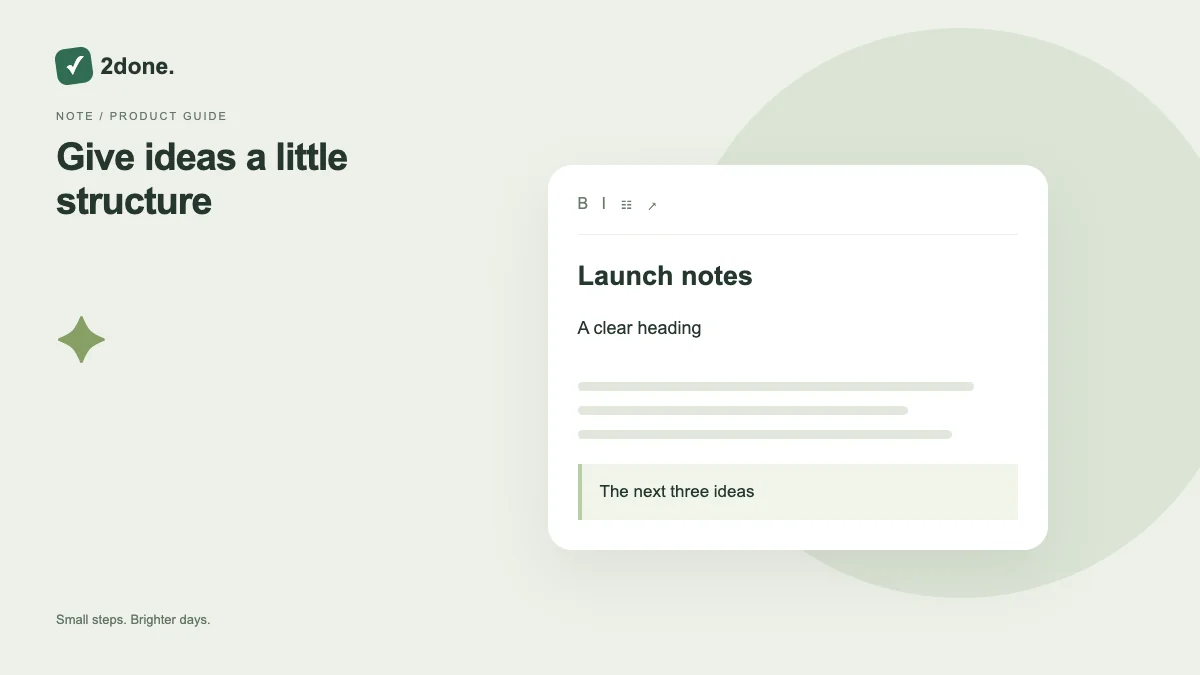 How-to guides
Notes provide an editor for longer writing, with headings, emphasis, lists, quotes and code blocks. This is different from a task description: the note is a document you can return to and edit.
Read article ↗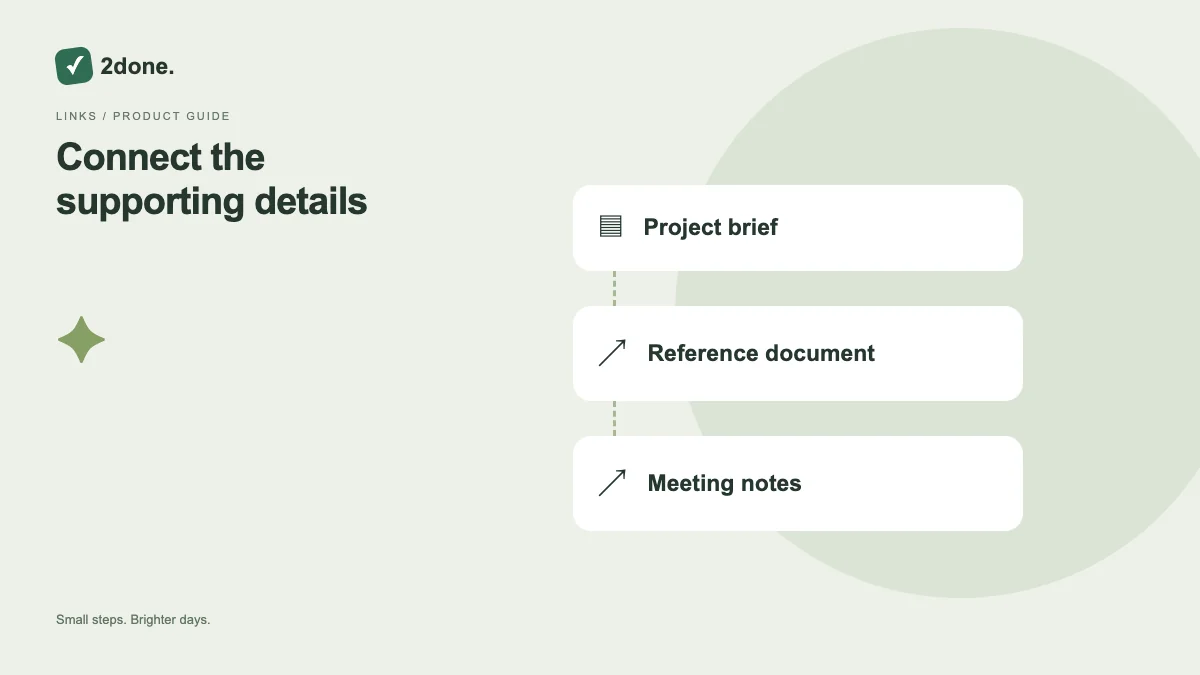 How-to guides
The note editor can attach a web address to selected text. A descriptive link keeps the document readable while preserving access to a reference or external file location.
Read article ↗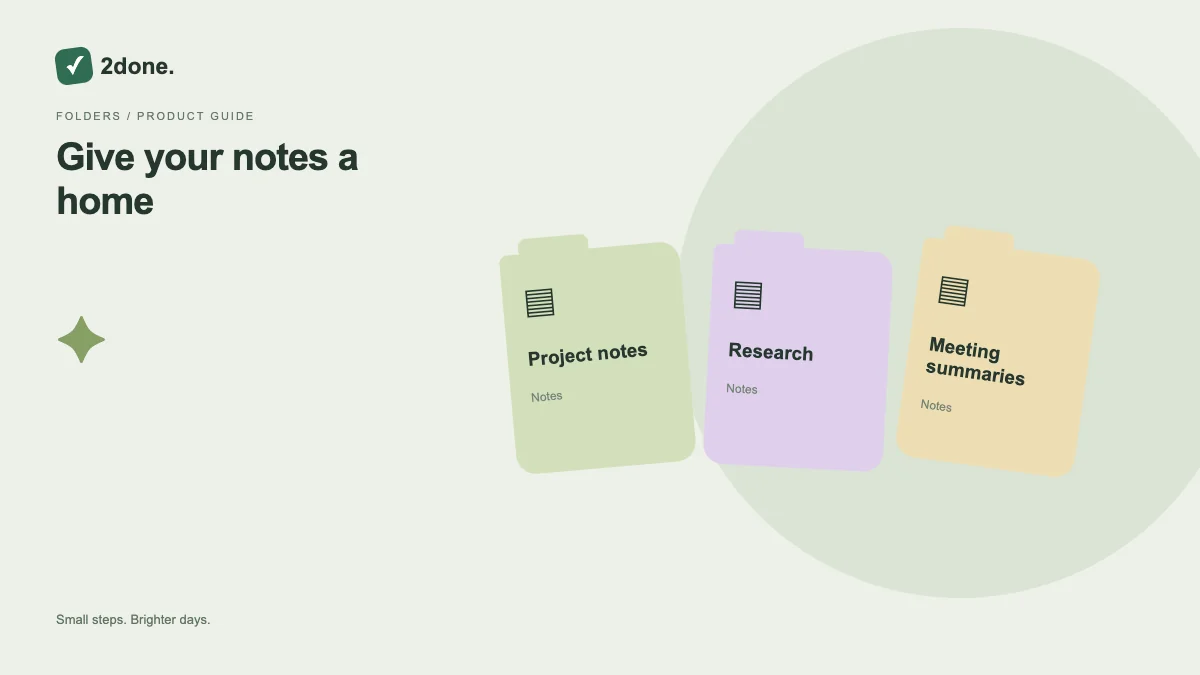 How-to guides
Folders group notes in a workspace so related documents are easier to browse. The folder view and folder filter help separate organization from the content of the notes themselves.
Read article ↗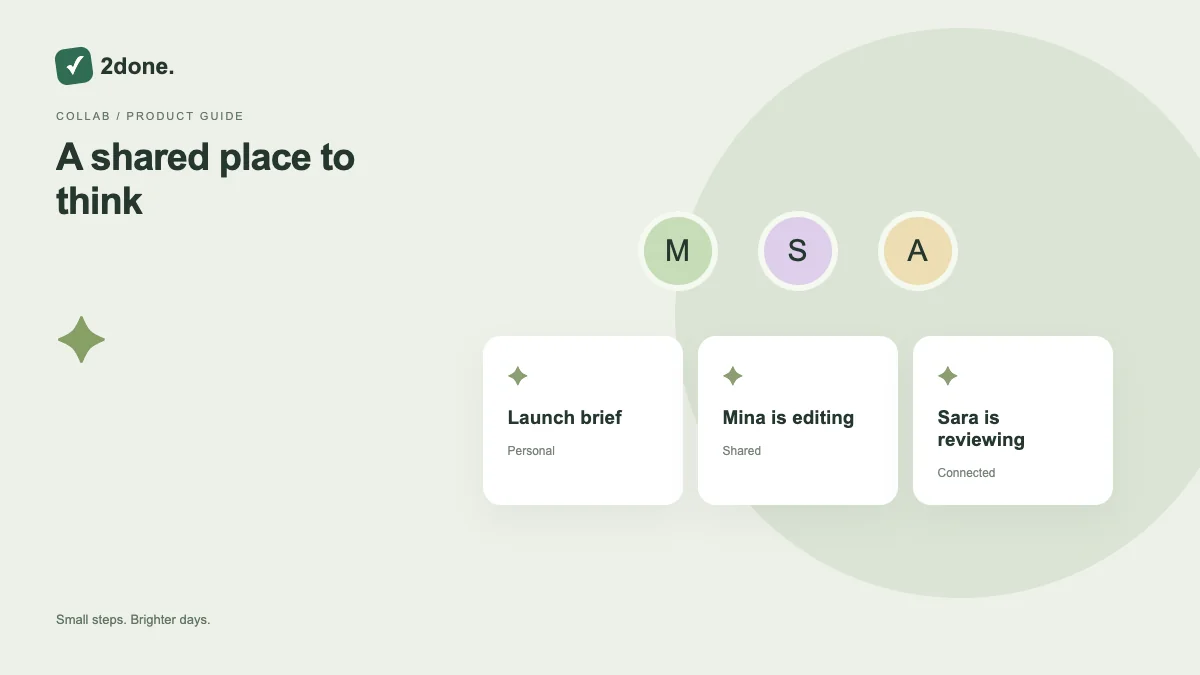 Collaboration
Shared notes support live collaborative writing for people with the appropriate workspace access. Connection and save indicators explain whether the editor is synchronized or still trying to reconnect.
Read article ↗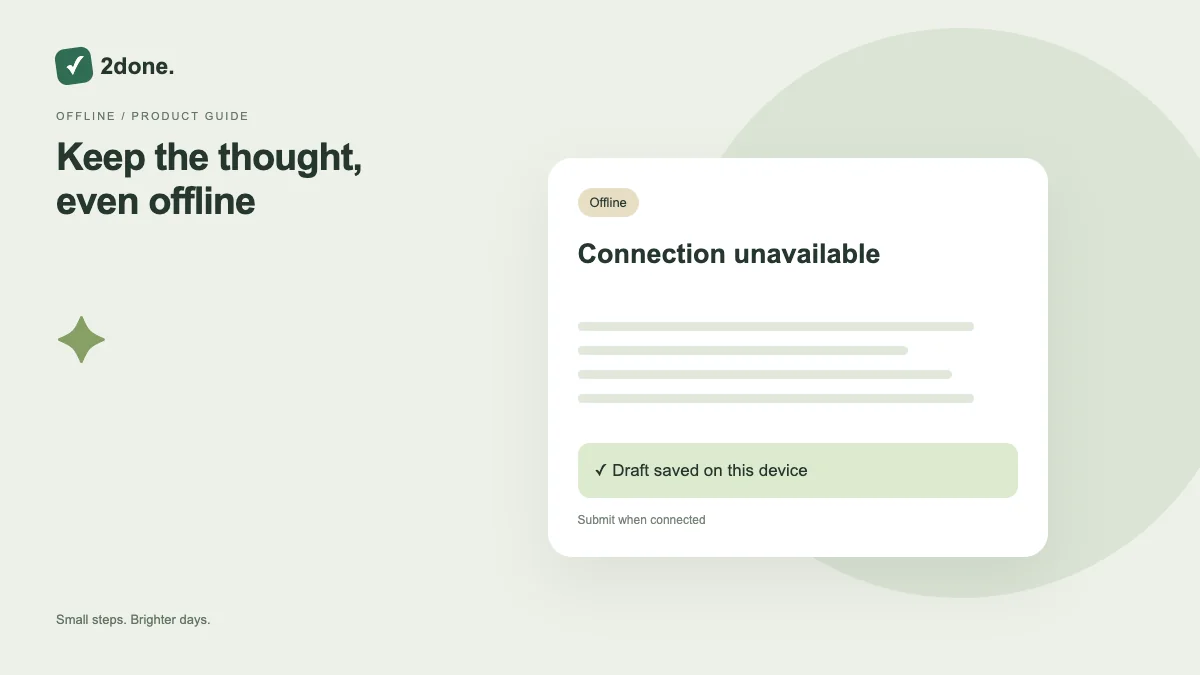 How-to guides
Local drafts preserve entered text on the current device when you cannot finish submission. They reduce the risk of losing writing, but they are distinct from tasks or notes successfully stored in the service.
Read article ↗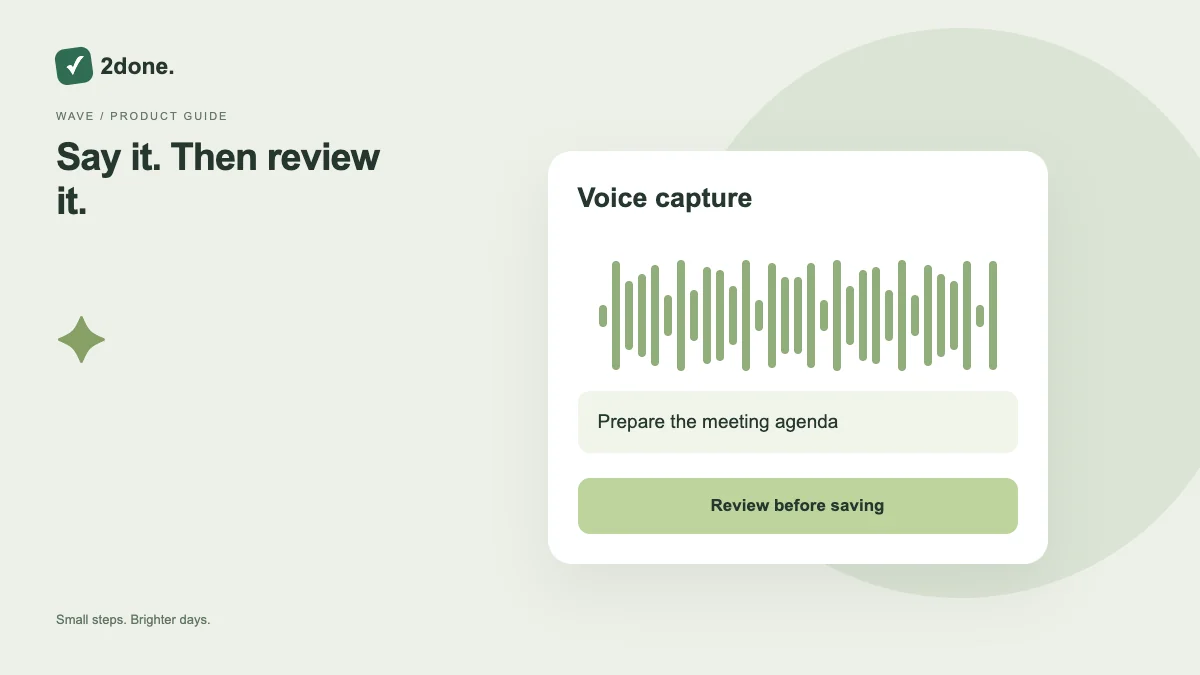 How-to guides
Voice input converts recorded speech into text for the relevant writing surface. Microphone permission, supported device recording and the configured speech service are required.
Read article ↗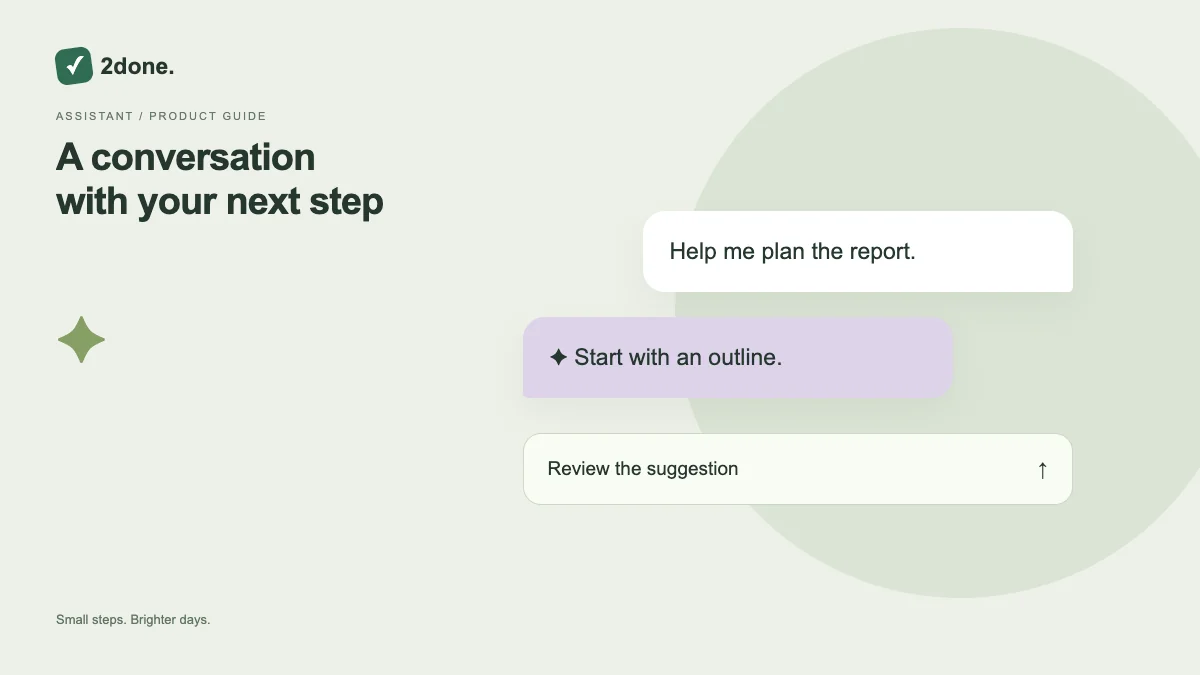 How-to guides
The assistant provides a conversation for planning and understanding work. AI responses require an eligible plan and available allowance, while ordinary task and note features remain separate.
Read article ↗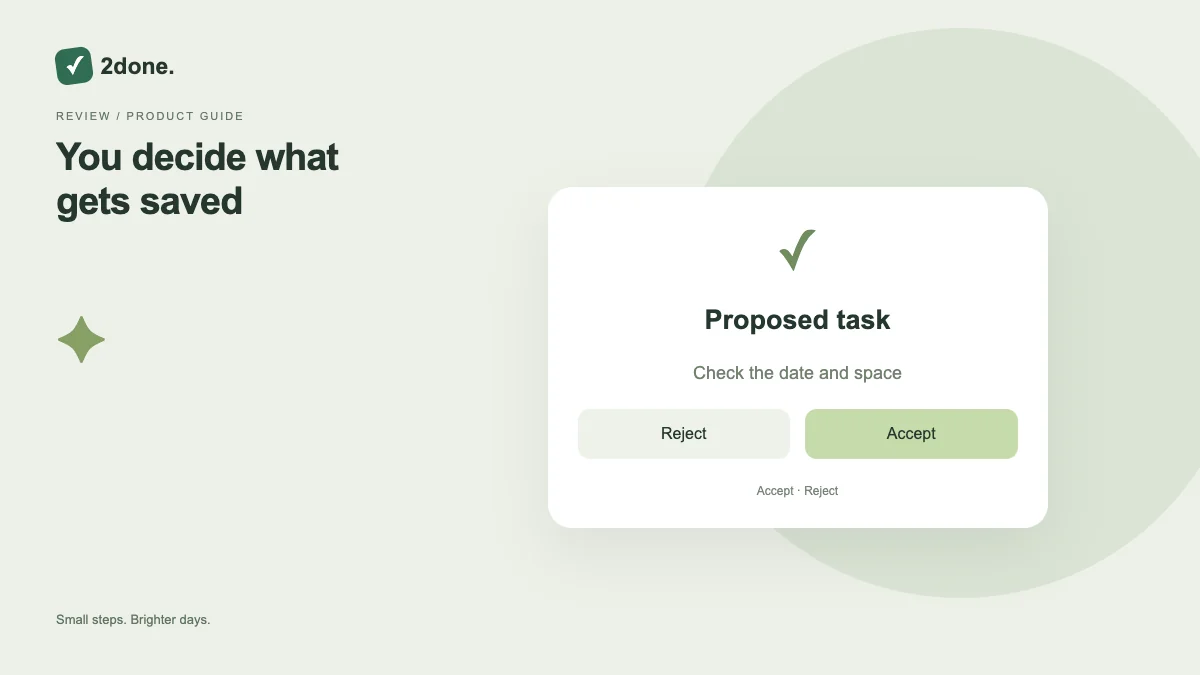 Planning
The review workflow presents proposed changes with before-and-after previews. It lets you inspect the target records and edit the proposal before applying it to real tasks, notes or folders.
Read article ↗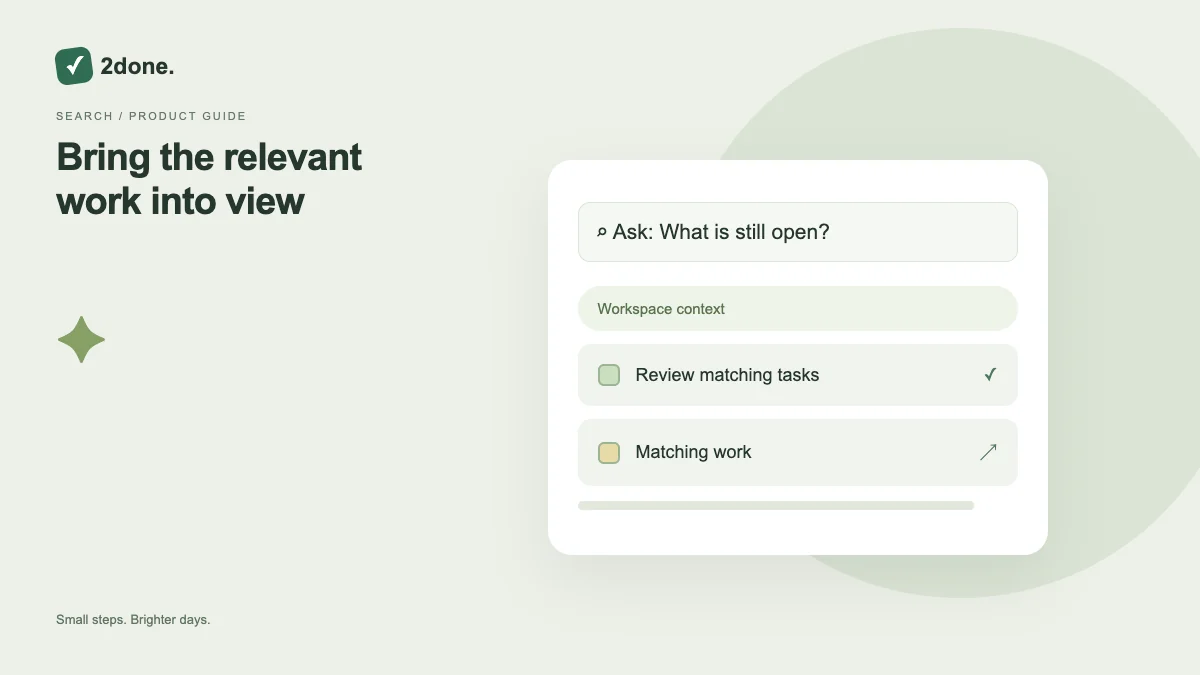 How-to guides
Workspace questions help retrieve relevant work through an assistant request. Result cards connect the answer to records you can inspect, so you do not have to rely solely on a prose summary.
Read article ↗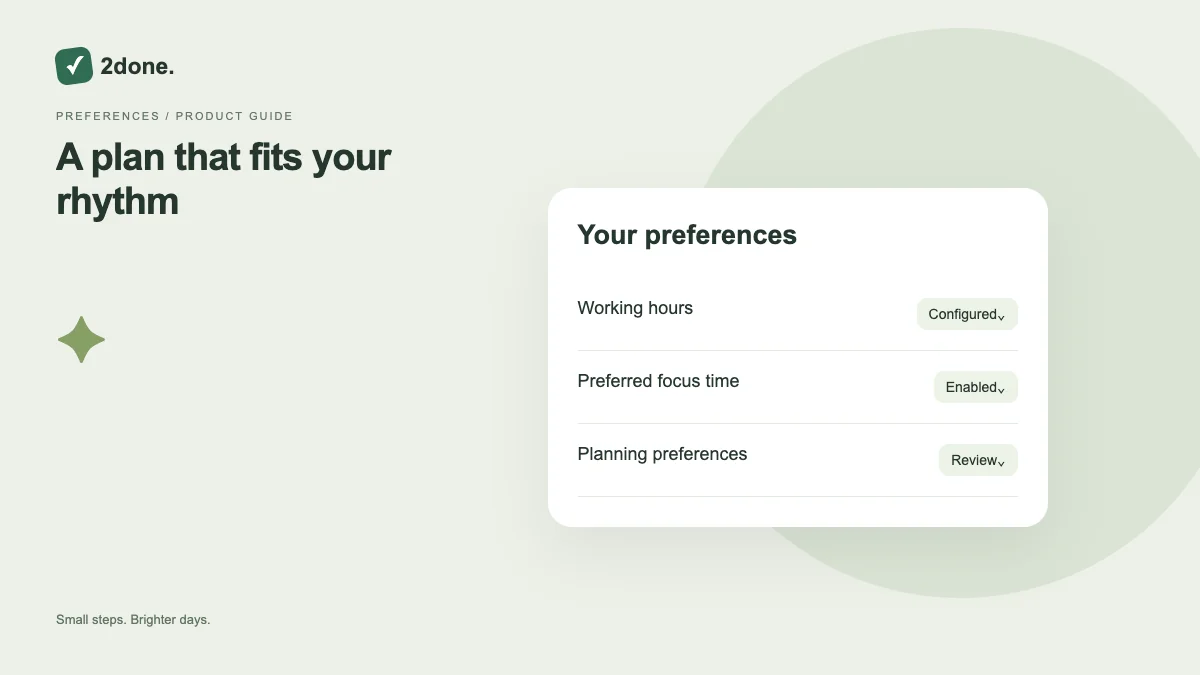 Planning
Planning preferences provide saved context for the assistant’s planning workflow. They help express the constraints the available preference form supports, rather than restating the same background in every message.
Read article ↗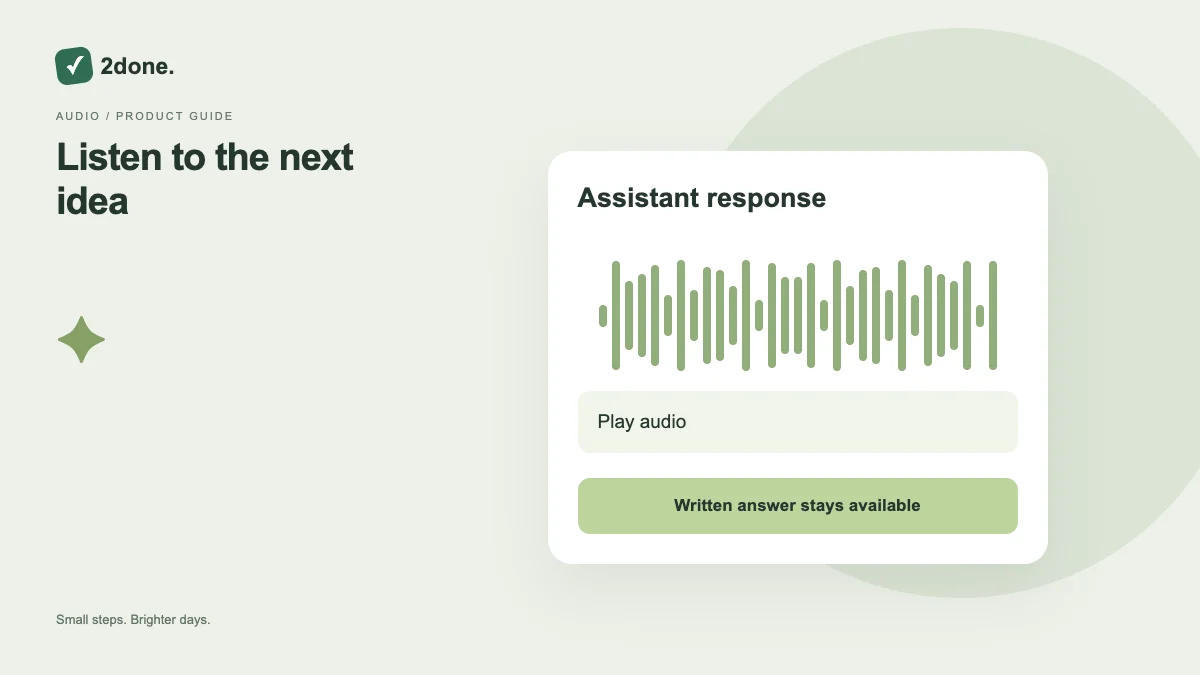 How-to guides
Read-aloud plays a spoken version of an assistant response when the configured speech output is available. It is a listening aid, separate from microphone input and from applying proposed workspace changes.
Read article ↗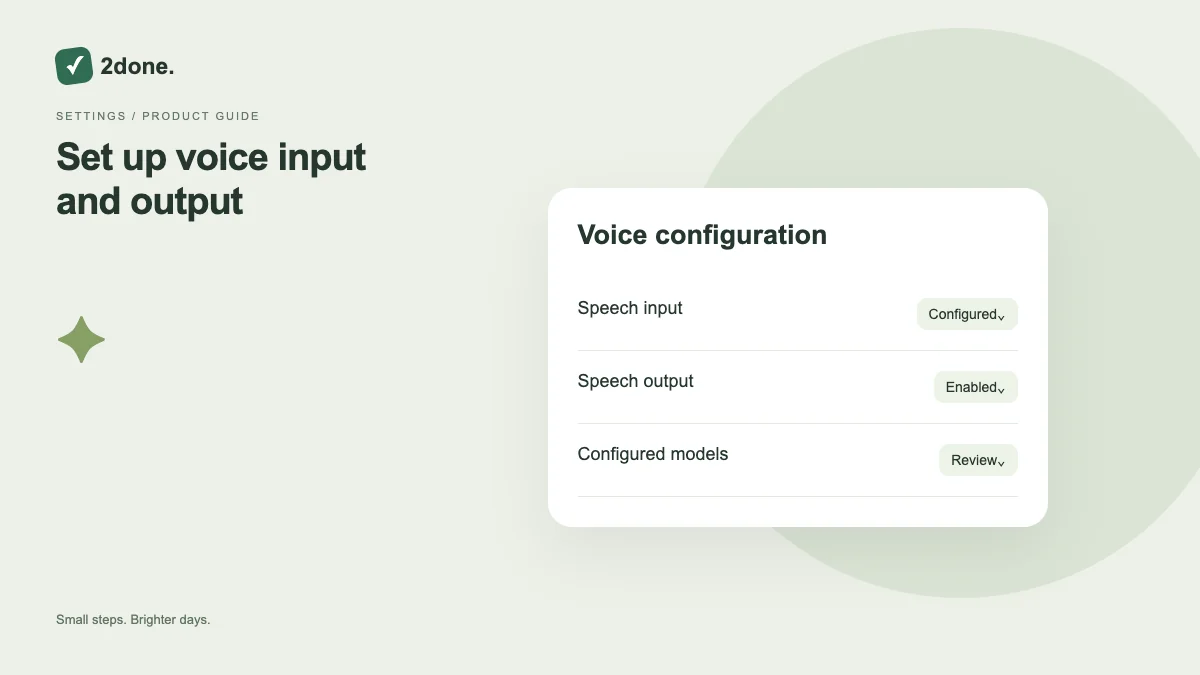 How-to guides
Speech settings control the voice capabilities available through the configured models and enabled options. Administration of a speech service is different from granting microphone permission on your own device.
Read article ↗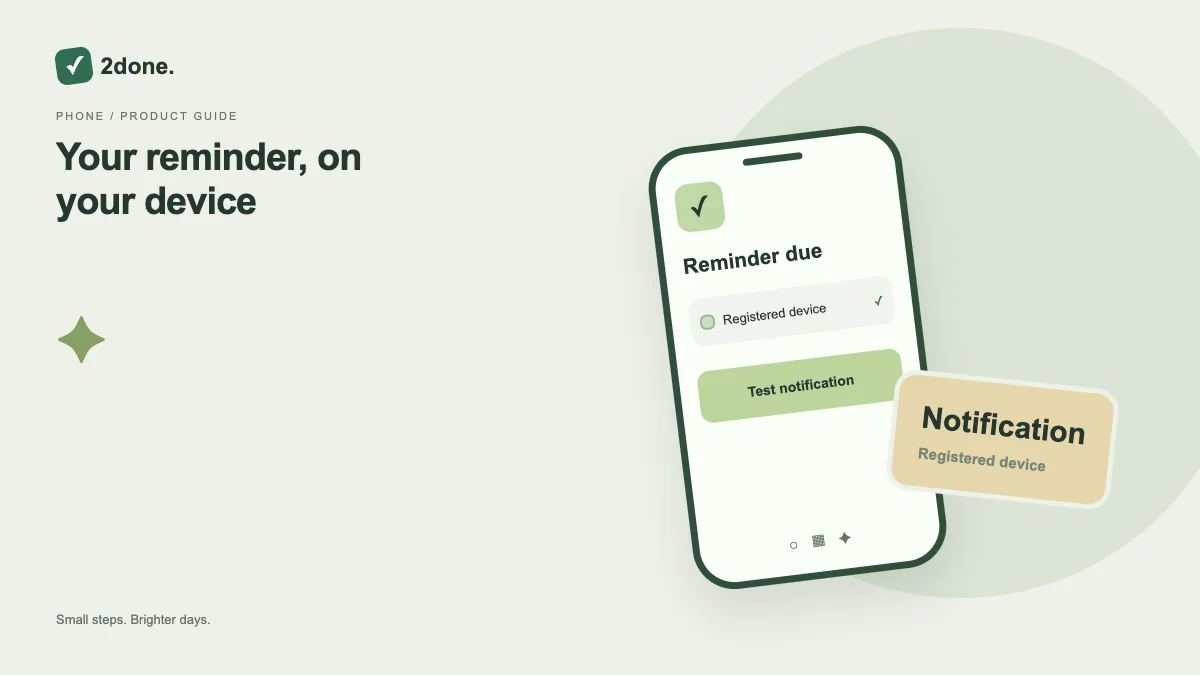 How-to guides
Device notification settings register this browser and device for background reminders. Permission is specific to the device; enabling one phone does not enable another.
Read article ↗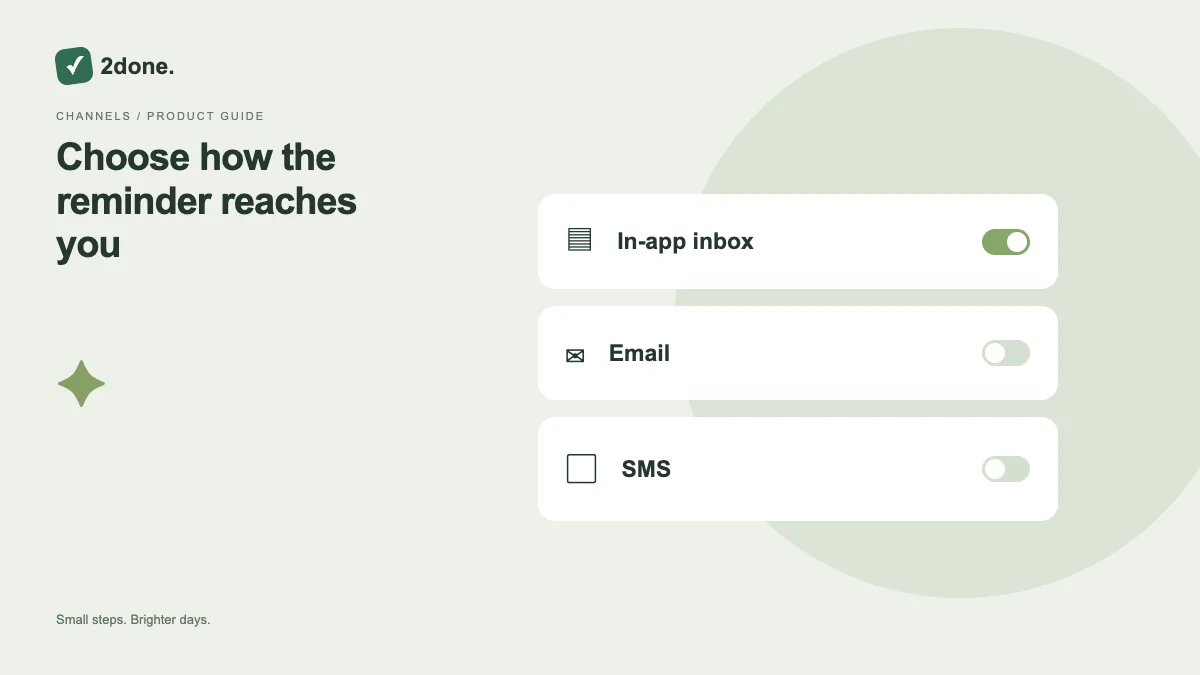 How-to guides
Reminder preferences select the delivery channels for scheduled reminders. Email and SMS stay off until enabled; the in-app inbox remains available.
Read article ↗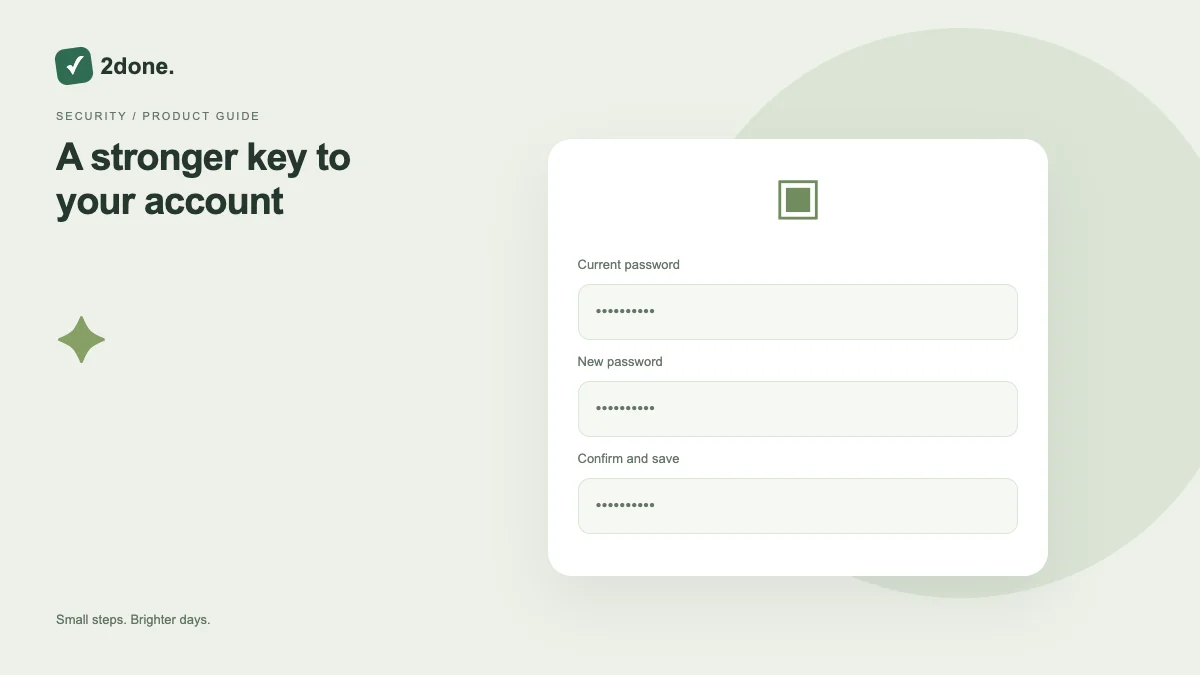 How-to guides
Password settings let you create or change the password used for account access. A saved password belongs to your account rather than to a shared workspace.
Read article ↗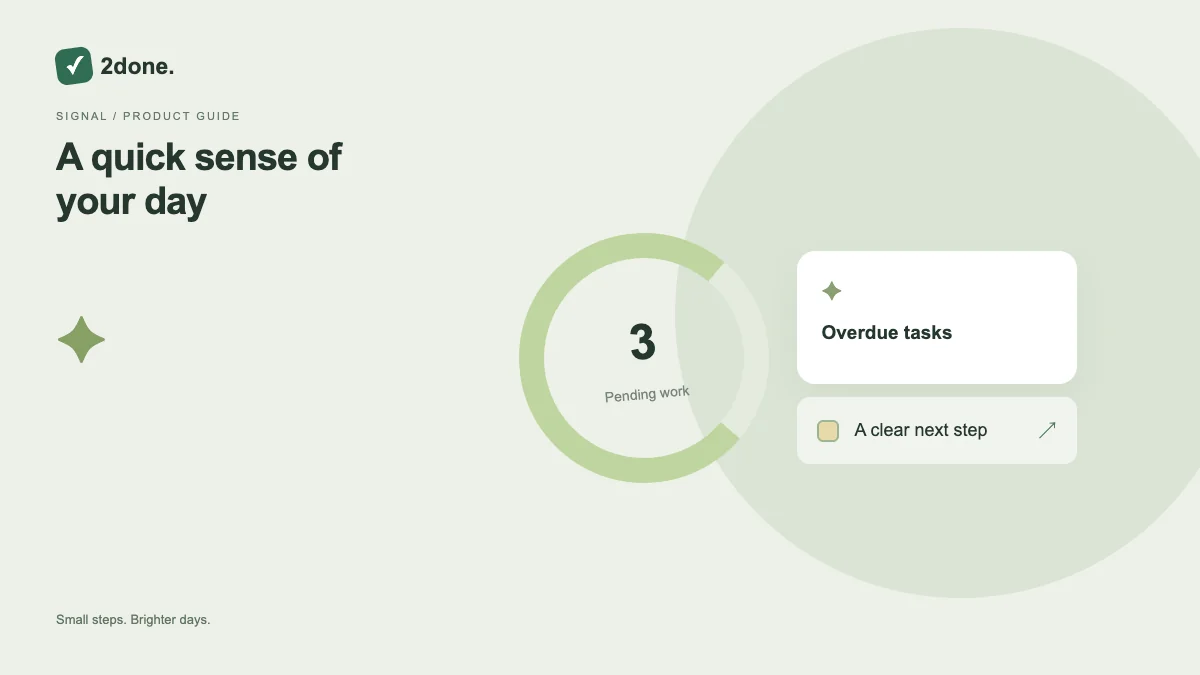 Planning
The day signal summarizes your active tasks due by the end of today, together with undated work. It helps you decide what to review next.
Read article ↗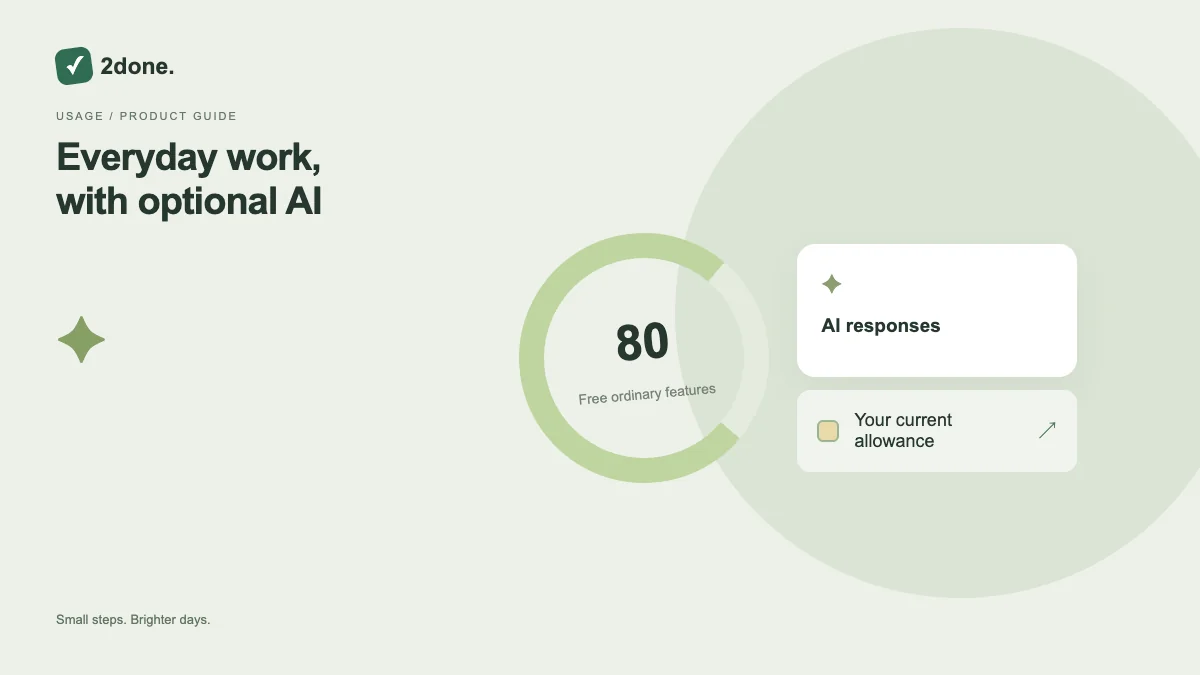 How-to guides
2Done separates ordinary task management from AI assistance. Tasks, notes, reminders and collaboration are presented as free features; paid plans provide assistant response allowances.
Read article ↗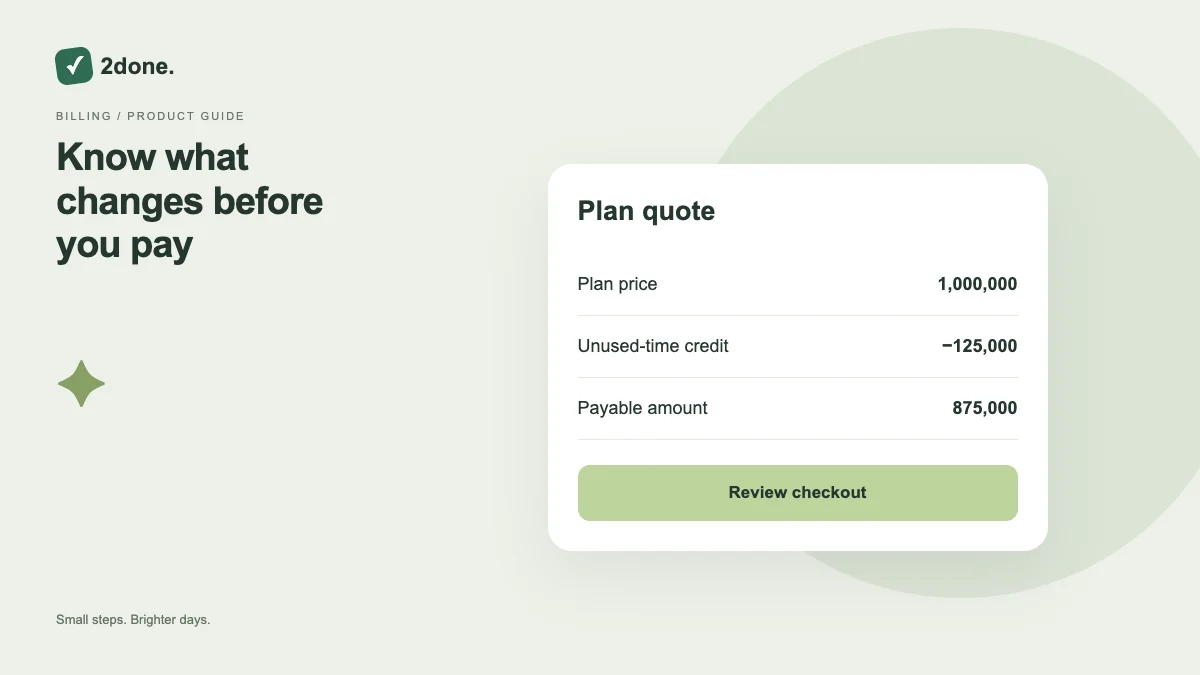 How-to guides
Renewal and upgrade have different effects on paid AI access. A renewal extends access; an upgrade starts a new month with credit for unused paid days.
Read article ↗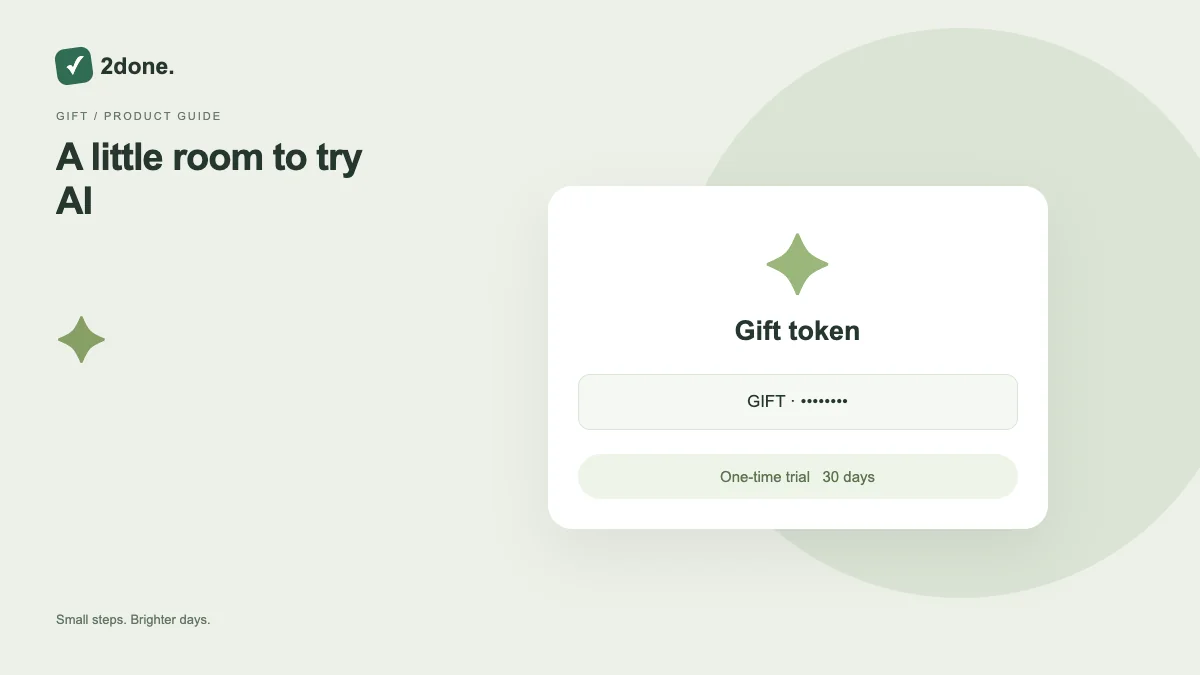 How-to guides
An eligible new signup can redeem a gift token for a one-time 30-day AI trial. A token may be shared with multiple eligible people up to its configured use limit.
Read article ↗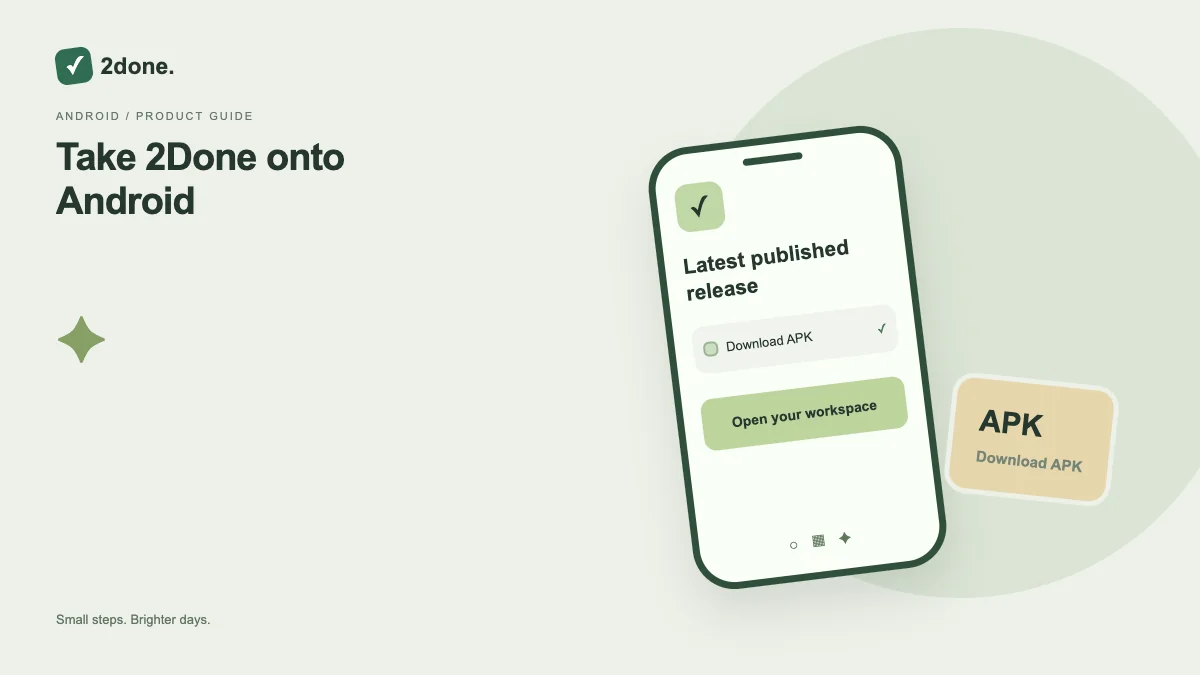 How-to guides
The Android button resolves the latest published release from 2Done’s own Version service. The landing page shows the available version instead of a fixed artifact link.
Read article ↗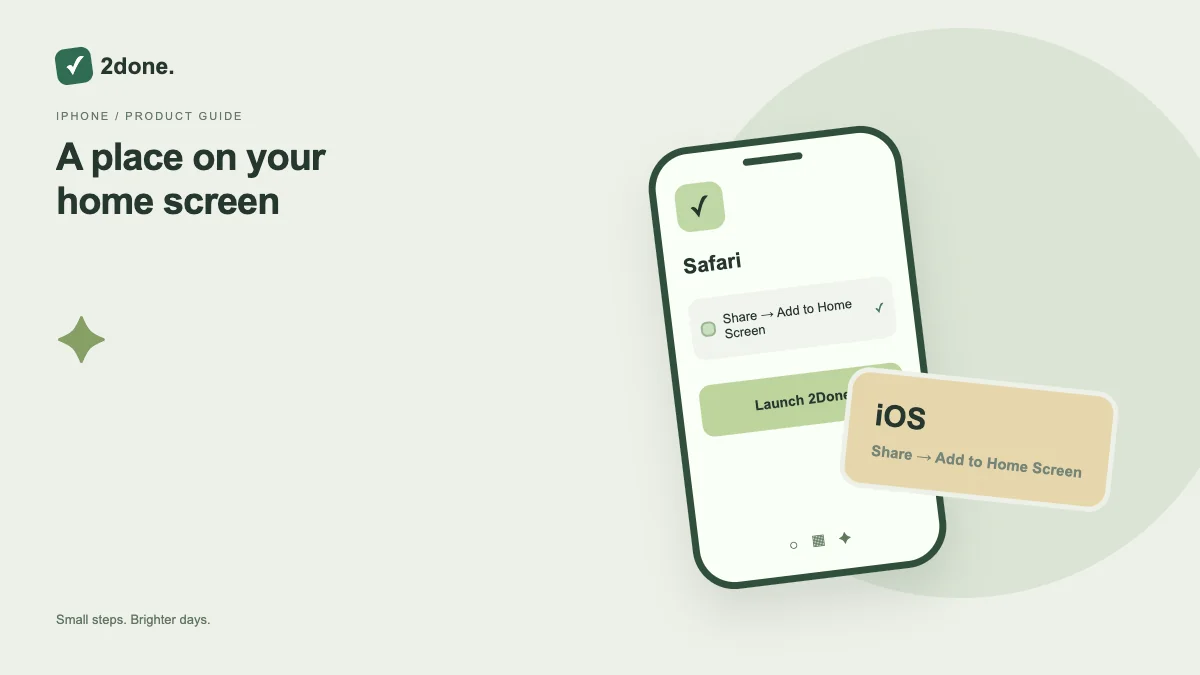 How-to guides
2Done offers an iPhone installation guide for its web app. Adding the icon gives you a separate launch point while keeping the same account and service.
Read article ↗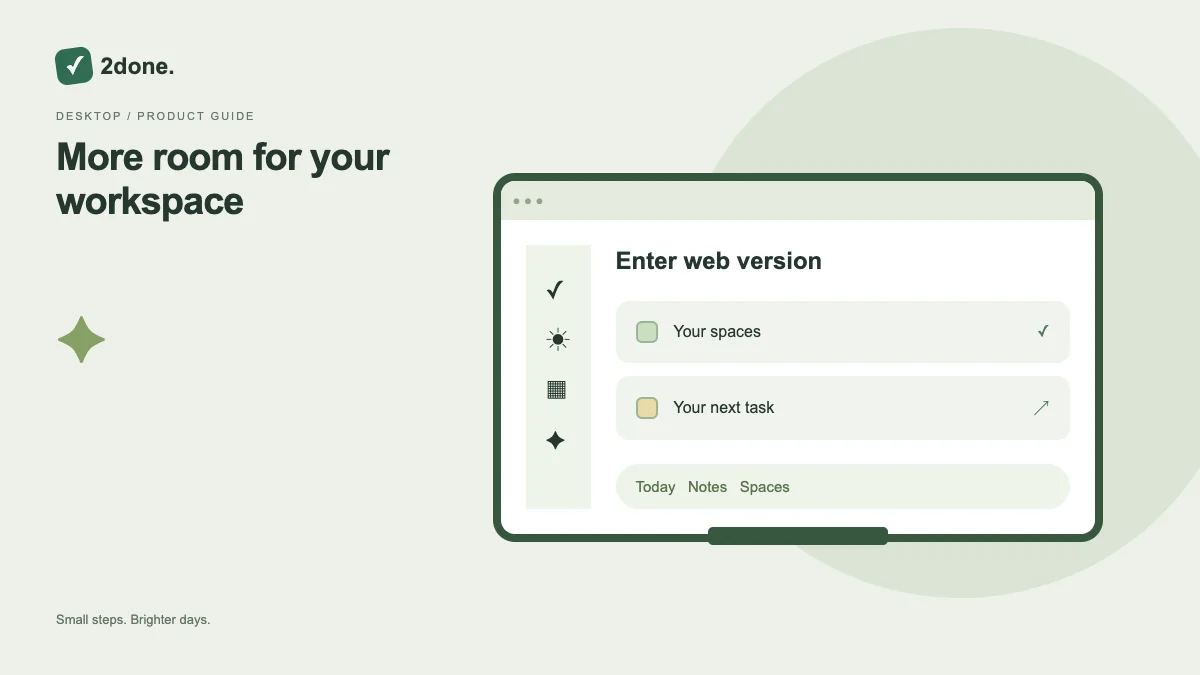 How-to guides
The Enter web version action opens the browser workspace. Desktop users can work without installing an Android package or an iPhone icon.
Read article ↗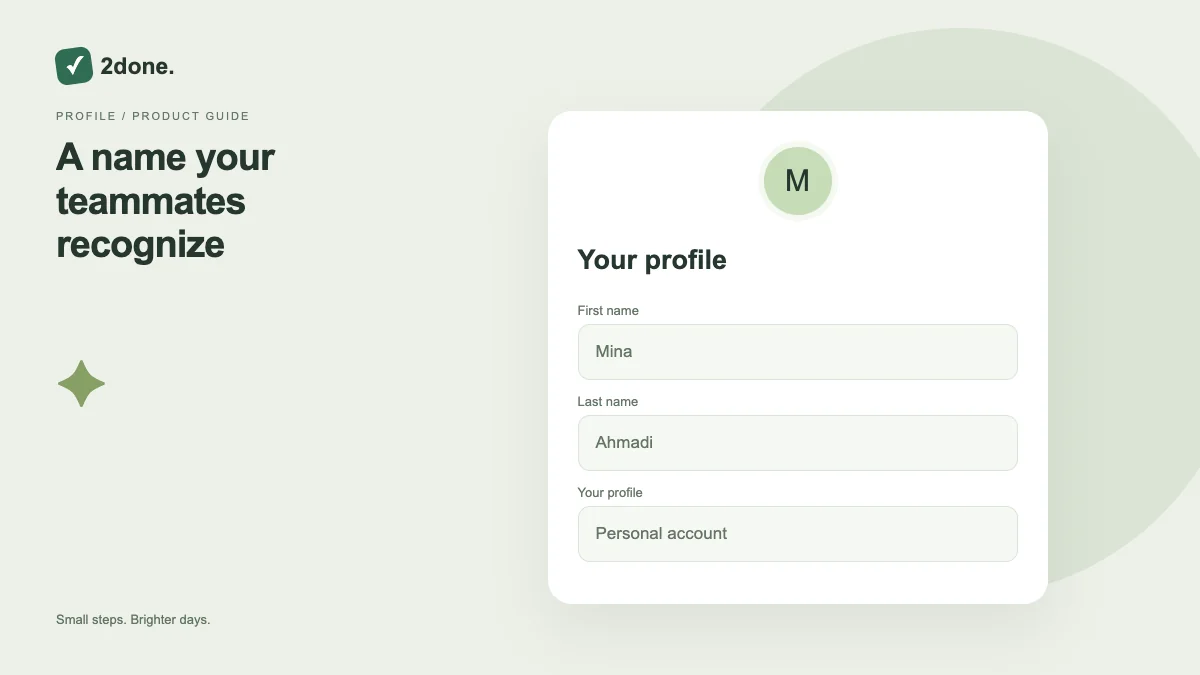 How-to guides
Account profile settings store your first and last name for the selected language. A clear name helps identify you in shared work.
Read article ↗No articles match this search.