The doing timer in 2Done: see how long the current work has been active
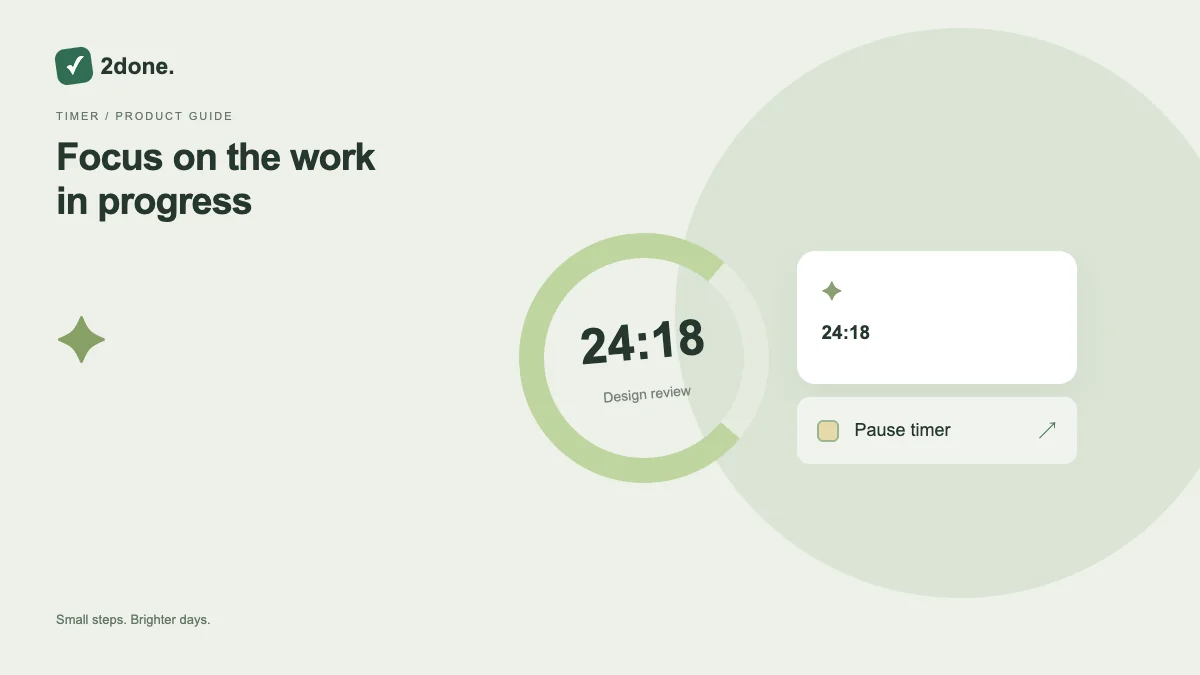
The task clock displays elapsed time associated with the current work-start timestamp. It gives context while a task is in progress and is separate from its due time or reminder schedule.
What this feature does
The task clock displays elapsed time associated with the current work-start timestamp. It gives context while a task is in progress and is separate from its due time or reminder schedule.
How to use it
Use the start or clock control on the task when beginning work. Observe the elapsed display while reviewing the task. Use the available clock control deliberately, then confirm the saved change and task status.
A practical example
While reviewing a proposal, the running display can remind you how long the current work session has been underway. The completion decision still depends on delivering the review.
What to know before you start
This display is not a promise of billable timesheets, payroll calculations or a complete historical time ledger. Changing status and changing the clock should be understood separately.
Troubleshooting
If the displayed duration surprises you, inspect the task’s current state and recent changes. Do not use an unexpected elapsed value as evidence of a teammate’s actual working hours.
Sources & further reading
Keep reading
 Planning
How to plan your day with a task list you can finish
A practical 2Done workflow for capturing tasks, choosing a realistic today list and reviewing unfinished work without losing it.
Read article ↗ How-to guides
Due dates vs reminders: set the right one for each task
Understand deadlines, one-time alerts and recurring reminders in 2Done, with a checklist for notifications that do not arrive.
Read article ↗