Due dates vs reminders: set the right one for each task
Understand deadlines, one-time alerts and recurring reminders in 2Done, with a checklist for notifications that do not arrive.
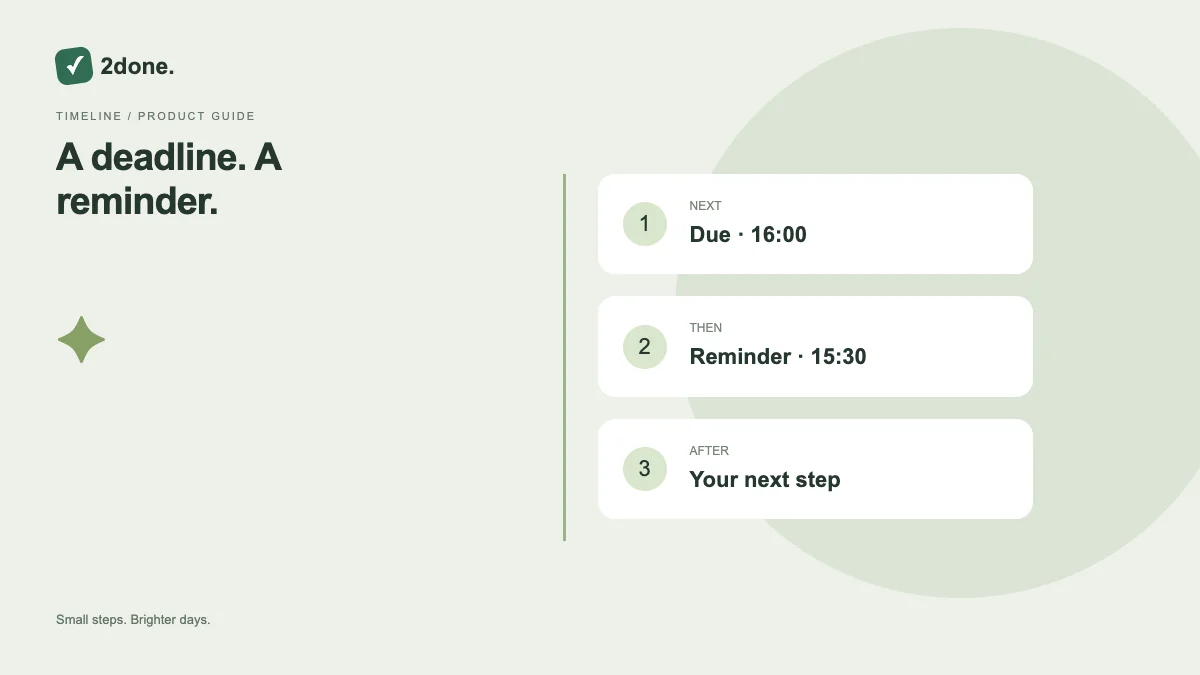
A deadline is not an alert
A due date describes when work should be finished. A reminder describes when you want to be prompted. You might need a reminder a day before a deadline to begin preparation. Treating these as separate settings makes the intention clearer.
In 2Done, entering a due time alone does not send a notification. Enable the task reminder and select the relevant schedule. Microsoft’s task guidance also presents due dates and reminders as separate controls.
Choose recurrence deliberately
Use a one-time reminder for a single commitment. Use daily or monthly recurrence for work that repeats on that schedule. Confirm the anchor time and timezone when you set it, especially if travel or collaboration crosses timezones.
A recurring reminder is a prompt, not proof that the underlying work was completed. Keep the task status accurate and review the recurrence when the commitment changes.
Check the delivery path
If a notification is missing, first confirm that the task was saved and the reminder is enabled. Then inspect the in-app inbox and your delivery preferences. Browser or device permissions can affect device notifications; they do not change whether you completed a task.
An offline text draft is not a scheduled reminder. It remains local until the service confirms creation. Avoid promising yourself a future alert based only on text in an unsent draft.
Keep alerts useful
Reserve reminders for moments when a prompt changes what you will do. A long set of repetitive alerts is harder to act on than a few reminders connected to clear next steps. Revisit schedules during your weekly review.
Sources & further reading
Keep reading
 Planning
How to plan your day with a task list you can finish
A practical 2Done workflow for capturing tasks, choosing a realistic today list and reviewing unfinished work without losing it.
Read article ↗ Collaboration
Shared tasks and AI assistance: keep ownership clear
Organize shared work in 2Done with clear next actions, useful context and reviewed AI proposals. Understand what is free and what paid AI plans add.
Read article ↗