Links in 2Done notes: connect the text to its sources
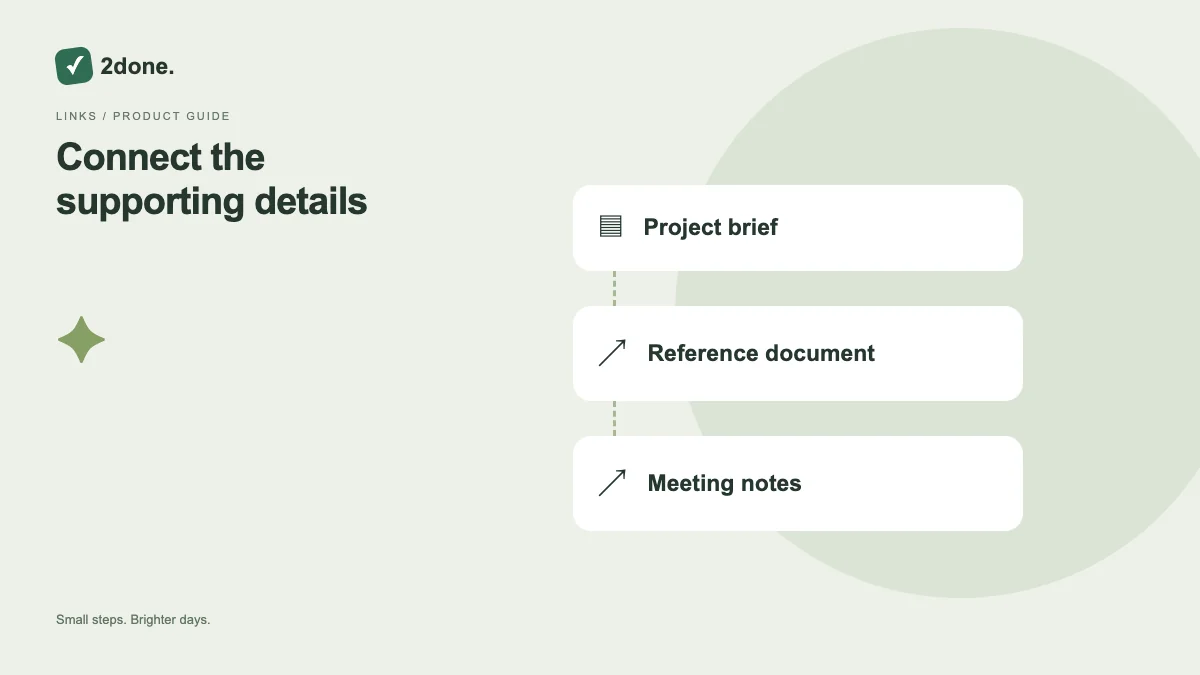
The note editor can attach a web address to selected text. A descriptive link keeps the document readable while preserving access to a reference or external file location.
What this feature does
The note editor can attach a web address to selected text. A descriptive link keeps the document readable while preserving access to a reference or external file location.
How to use it
Select the relevant text, open the link control and enter the intended address. Apply the link, confirm its destination, and check the save state. Use the remove-link control when the reference no longer applies.
A practical example
Link “Approved brief” to the actual brief rather than pasting a long address repeatedly. Label the destination clearly so a collaborator knows what opening it should show.
What to know before you start
A link does not upload the destination file or grant access to it. The external site’s permissions, availability and content may change independently of the note.
Troubleshooting
If a reference fails to open, inspect the saved address and the destination’s access rules. Fix the link text or URL deliberately rather than deleting unrelated document content.
Sources & further reading
Keep reading
 Planning
How to plan your day with a task list you can finish
A practical 2Done workflow for capturing tasks, choosing a realistic today list and reviewing unfinished work without losing it.
Read article ↗ How-to guides
Due dates vs reminders: set the right one for each task
Understand deadlines, one-time alerts and recurring reminders in 2Done, with a checklist for notifications that do not arrive.
Read article ↗