Voice capture in 2Done: dictate, review, then save
Voice input converts recorded speech into text for the relevant writing surface. Microphone permission, supported device recording and the configured speech service are required.
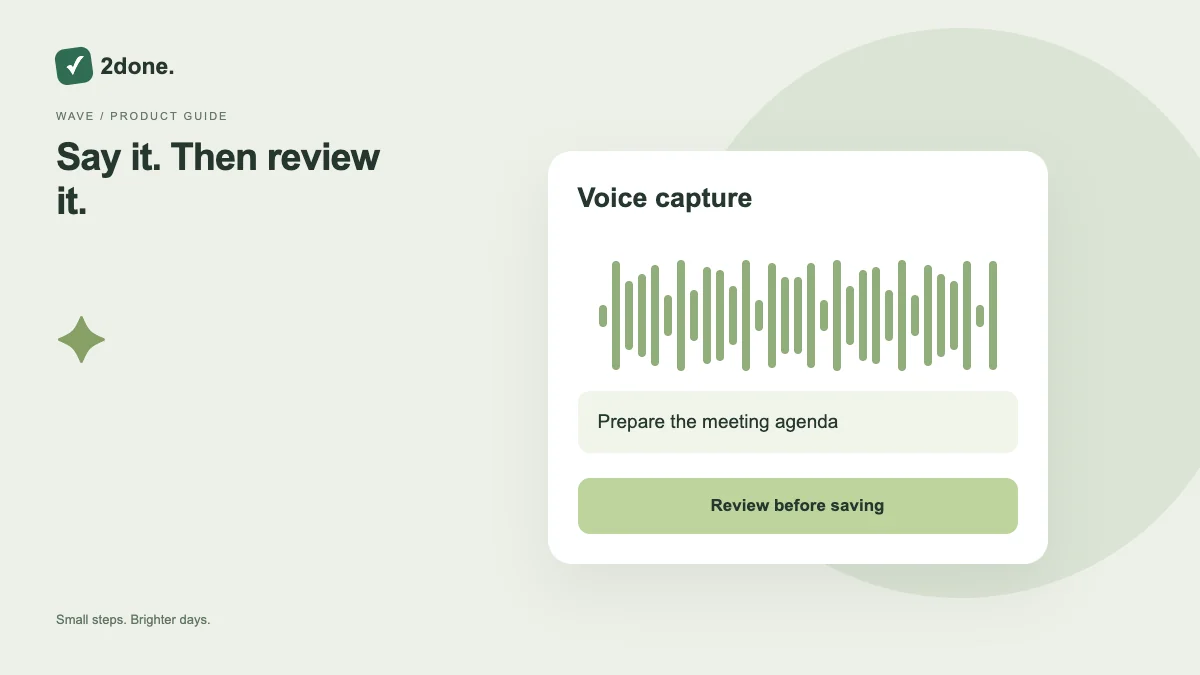
What this feature does
Voice input converts recorded speech into text for the relevant writing surface. Microphone permission, supported device recording and the configured speech service are required.
How to use it
Use the microphone action, allow access when you choose to record, and speak a short clear passage. Stop recording and wait for transcription. Review names, numbers and intended dates in the resulting text before submitting it.
A practical example
Dictate “Ask Nima to review the report tomorrow”, then check the name and wording. If you need a real deadline or assignment, verify those structured task fields separately instead of relying on the sentence alone.
What to know before you start
Transcription can be wrong and may be unavailable on some devices or when the configured service is unavailable. Voice text is not automatic confirmation that a task was created or scheduled.
Troubleshooting
If recording cannot start, check microphone permission and device support. Cancel an unwanted recording and keep typed input available; do not repeat sensitive speech just because a request is pending.
Sources & further reading
Keep reading
 Planning
How to plan your day with a task list you can finish
A practical 2Done workflow for capturing tasks, choosing a realistic today list and reviewing unfinished work without losing it.
Read article ↗ How-to guides
Due dates vs reminders: set the right one for each task
Understand deadlines, one-time alerts and recurring reminders in 2Done, with a checklist for notifications that do not arrive.
Read article ↗